
For Instructions on HOW TO USE THE SECURE FILE WEB INTERFACE GO HERE.
TO ACCESS AND USE MERIDIAN SECUREFILE OUTLOOK PLUG-IN, see following instructions:
- To access your Outlook Secure File account, open your Outlook desktop (Please note: Secure File Outlook Plug-in can only be accessed via Outlook desktop, not your Outlook online).
- Click "New E-mail" and then select "Meridian Secure File" option in the top ribbon (see image 1 below).
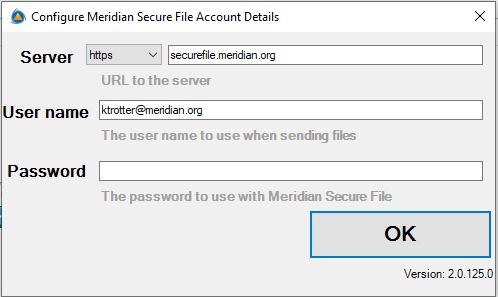
- You should be prompted with options to enter Server URL (securefile.meridian.org) Username (work e-mail) and password (Microsoft 365 password). If not, click the chevron and "Options" to initiate Login (see image 2 below).
IMAGE 1
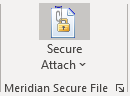
IMAGE 2
These are the selectable options in the Secure File Attach Dropdown menu:
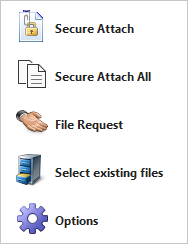
- Secure Attach — any file you would normally attach using the attach icon on Outlook can be attached using this Secure Attach button instead. This will cause any file attached to the email to be sent using Secure File.
- Secure Attach All — the Outlook plugin will automatically send large files through Secure File. If you have a combination of larger and smaller attachments, that means that some will go through Secure File and some direct. By Selecting Secure Attach All, all files, large and small, will be sent through Secure File.
- File Request — use Secure File to request a large and/or sensitive file from someone. The recipient of the File Request will receive a link they can use and any files attached will be delivered safely back to you (see additional details about File Request below).
- Select Existing Files — this will list already uploaded files from previous messages that you can send again without having to upload.
- Options — configure the Secure File Outlook plugin. Also use to Logout/Login Secure File account.
When you have selected a file to attach and send through Secure File, the Secure File Transfer Panel will open up like this: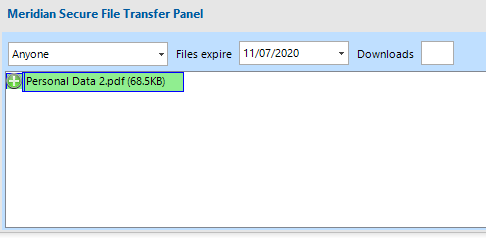
- From the Panel, you can select the Permission Levels (see details below, default is Anyone), the file expiration date (30 day default), and number of Downloads by recipient (the default is unlimited).
- Once you have entered your Panel options, be sure to type your message to the recipient, then click send.
- You will receive an e-mail notification when the recipient downloads the file.
Permission Levels:
Permission | Authentication Required | Download Receipt | Description |
Anyone | No | Once per file, when someone has downloaded the file. | Anyone may download the files. Use this option when you don't want your recipients to have to authenticate to download the files. The downside is that since we don't authenticate the recipients, we don't know who downloaded what. |
Only Specified Recipient | Yes | When each recipient download each file. | Only the recipients you have specified in the To, CC and BCC fields will be able to download the files. It won't be possible to forward the email or message URL to anyone. |
Recipient + Local | Yes | When each recipient download each file. | In addition to the Specified Recipients, any files sent may also be downloaded by any local users on the system by forwarding the email or sending the message URL. |
Recipient + Domain | Yes | When each recipient download each file. | In addition to the Specified Recipients, any files sent may also be downloaded by any receipient domain user. I.e. if you send to boss@company.com then secretary@company.com can also access the message, but not sneaky@competitor.com. |
Authenticated Users | No (If they have already authenticated) | When each recipient download each file. | Users that have already authenticated access prior. |
File Request
And when the recipient clicks on the File Request, they will be taken to a page that will look something like this:
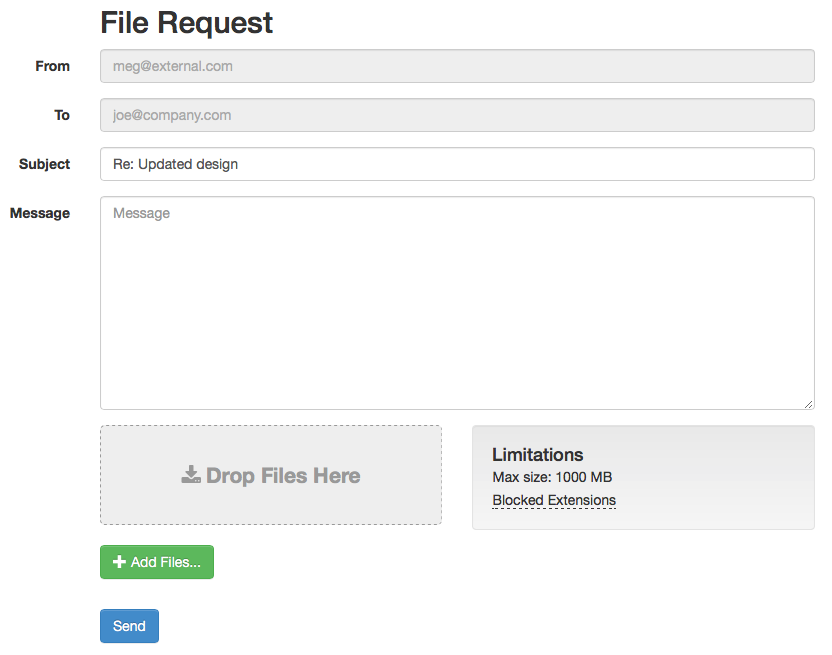
Where they can send the Requested Files back to the requester.
A couple of things to note:
- The File Request link is one time use only and will expire when the files have been delivered. If you need something to be used more than once, please look at using the Filedrop instead.
- The recipient does NOT need to register or do anything other than clicking on the link in the email, and since they got the email with the link, we know that the email address is valid.
For easy instructions to share with new recipients, please go HERE.