
1) Accessing Securely Shared "Secure File" Attachments
Once the sender has sent you a Secure File Attachment, you will receive an e-mail that resembles the following.
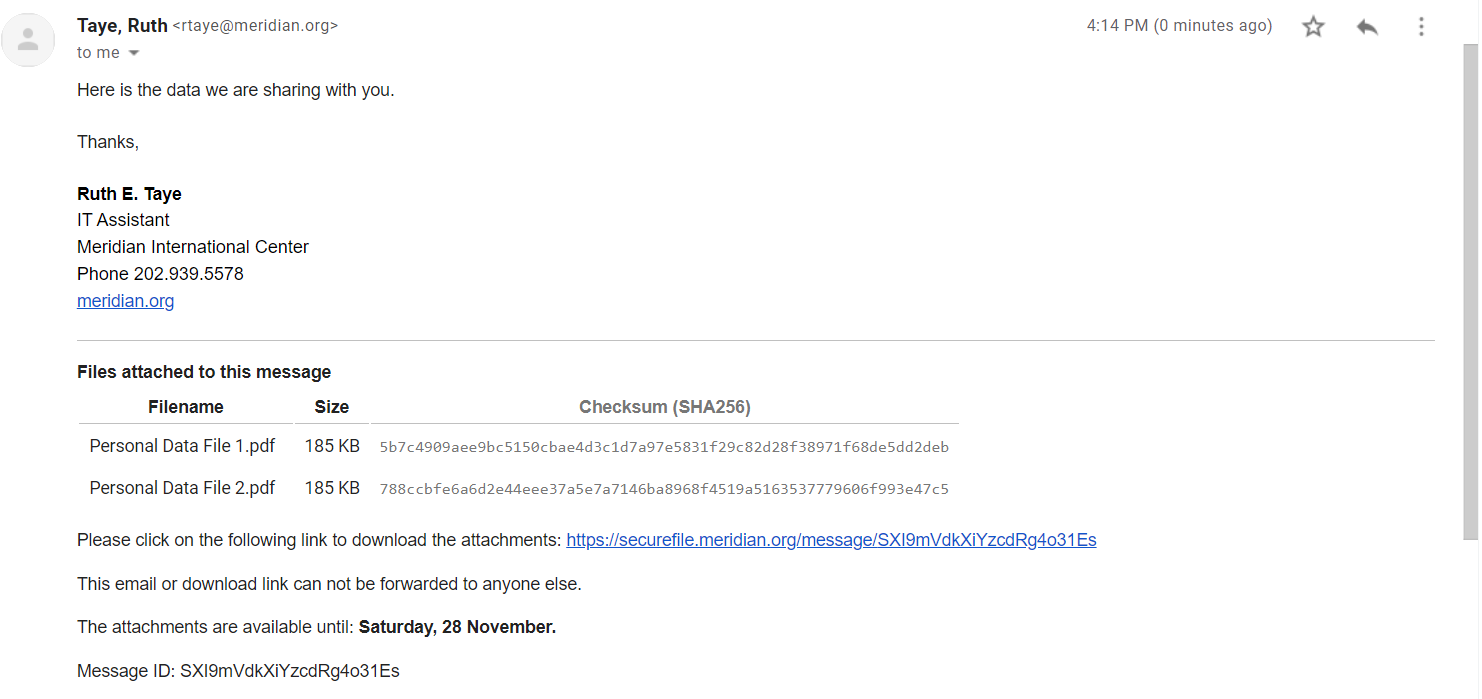
You will see:
- The email header with the To, From, Subject and so on at the top.
- The message typed in the message field in the compose window.
- The Files attached to the message header that begins the SecureFile added part.
- Each file sent is then listed together with the filename, file size and checksum.
- Beneath the files is the link the recipient will have to click to download the message.
- There is a notice if the email or download link can be forwarded to other users depending on the permission settings when the message was sent.
- There's an expiration notice alerting the user when they will have to download the files by.
- And finally there's a Message ID which is a unique ID that can be used when searching for this message in the SecureFile system.
To download the files, click on the link next to "Please click on the following link to download the attachments:"
Depending on the level of permission settings that were specified by the sender when sending the attachments, you will have to authenticate. Following this, you will be taken to a page where you will be able to click on the attached files.
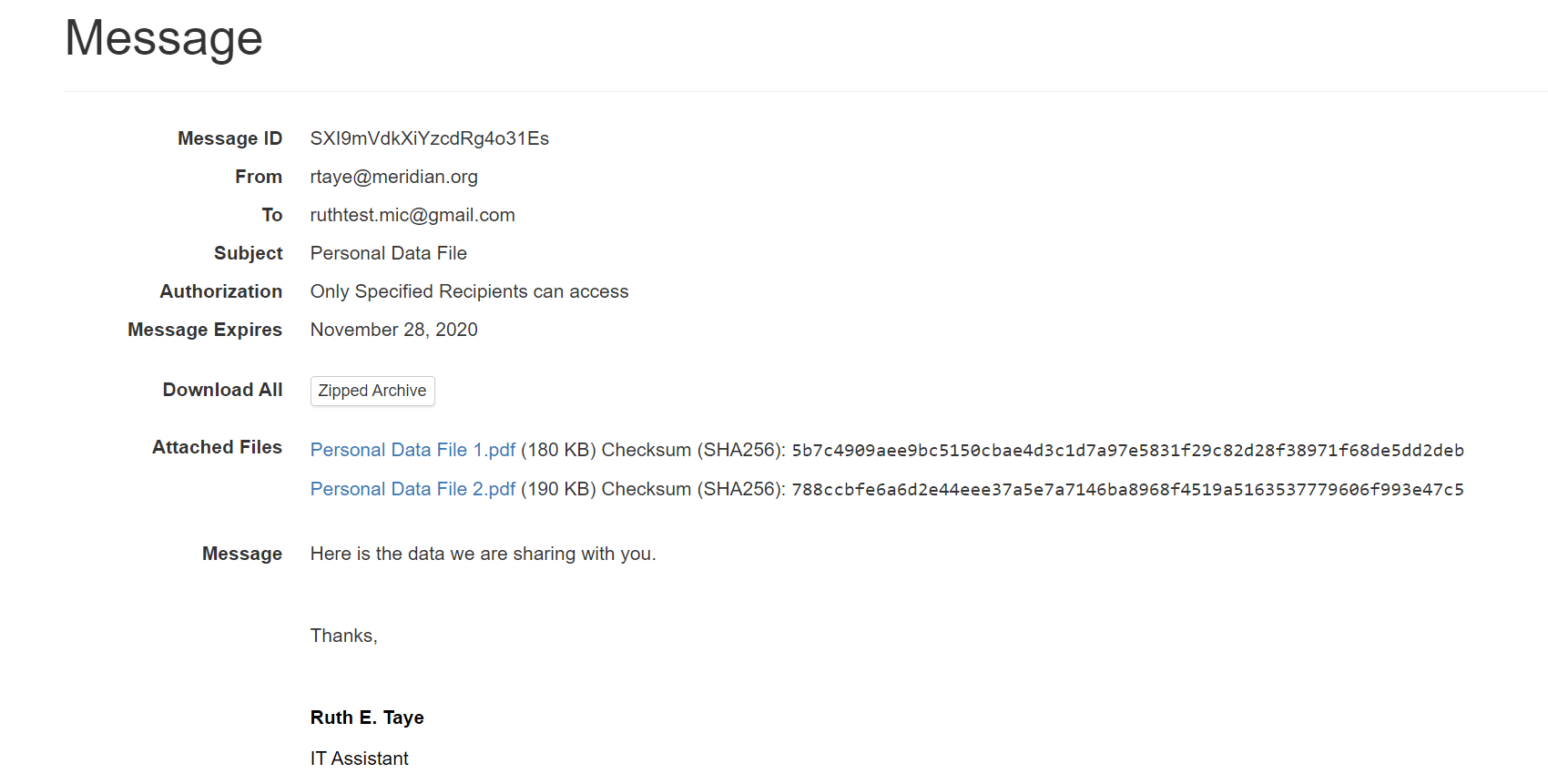
A couple of things to note:
- All the files are stored on the SecureFile system.
- When the message expires, the attachments will be automatically deleted. It's not possible to restore files after they have been deleted.
2) Responding to a File Request
When you've been sent a File Request link by a Meridian User to upload any files that require secure sharing, you will see the following:
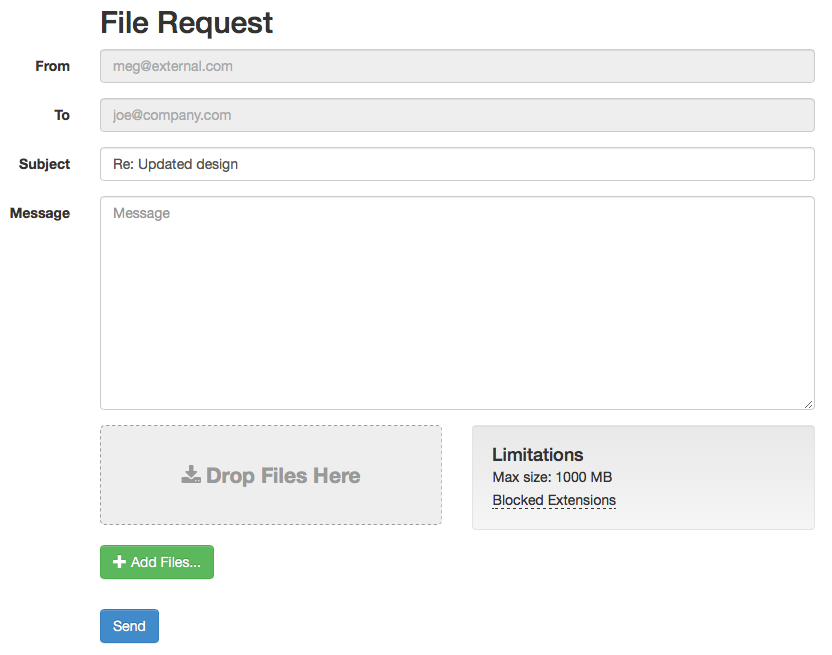
From here, you will be able to fill out the general message fields in the top (From, To, Subject, Message) and then upload the requested document(s). Once done, Press "Send", and the Original Sender will be notified via e-mail that you've completed the File Request.