
Overview
Meridian International Center uses KnowBe4 to provide continuous phishing awareness practice through safe, simulated phishing emails and targeted security training.
The program is designed to help staff:
- Recognize suspicious emails before interacting with them.
- Develop stronger email security habits through regular practice.
- Receive focused training based on identified needs.
- Reduce the likelihood that a real phishing email results in compromised accounts, malware, fraud, or data loss.
KnowBe4 simulations are controlled exercises. They are intended to build awareness and identify learning opportunities, not to blame staff members for mistakes.
What Is KnowBe4?
KnowBe4 is a security awareness platform that combines simulated phishing attacks, targeted training, automation, and reporting.
The platform can tailor simulations and training based on factors such as an employee’s role, risk profile, past interactions, and learning needs. This allows scenarios to more closely reflect the types of messages an employee may encounter during their daily work.
For example, staff members working with payroll, benefits, financial transactions, or sensitive records may receive simulated messages related to those responsibilities. This targeted approach is designed to resemble the methods used by real attackers who research organizations and their employees before sending phishing messages.
What Staff Should Expect
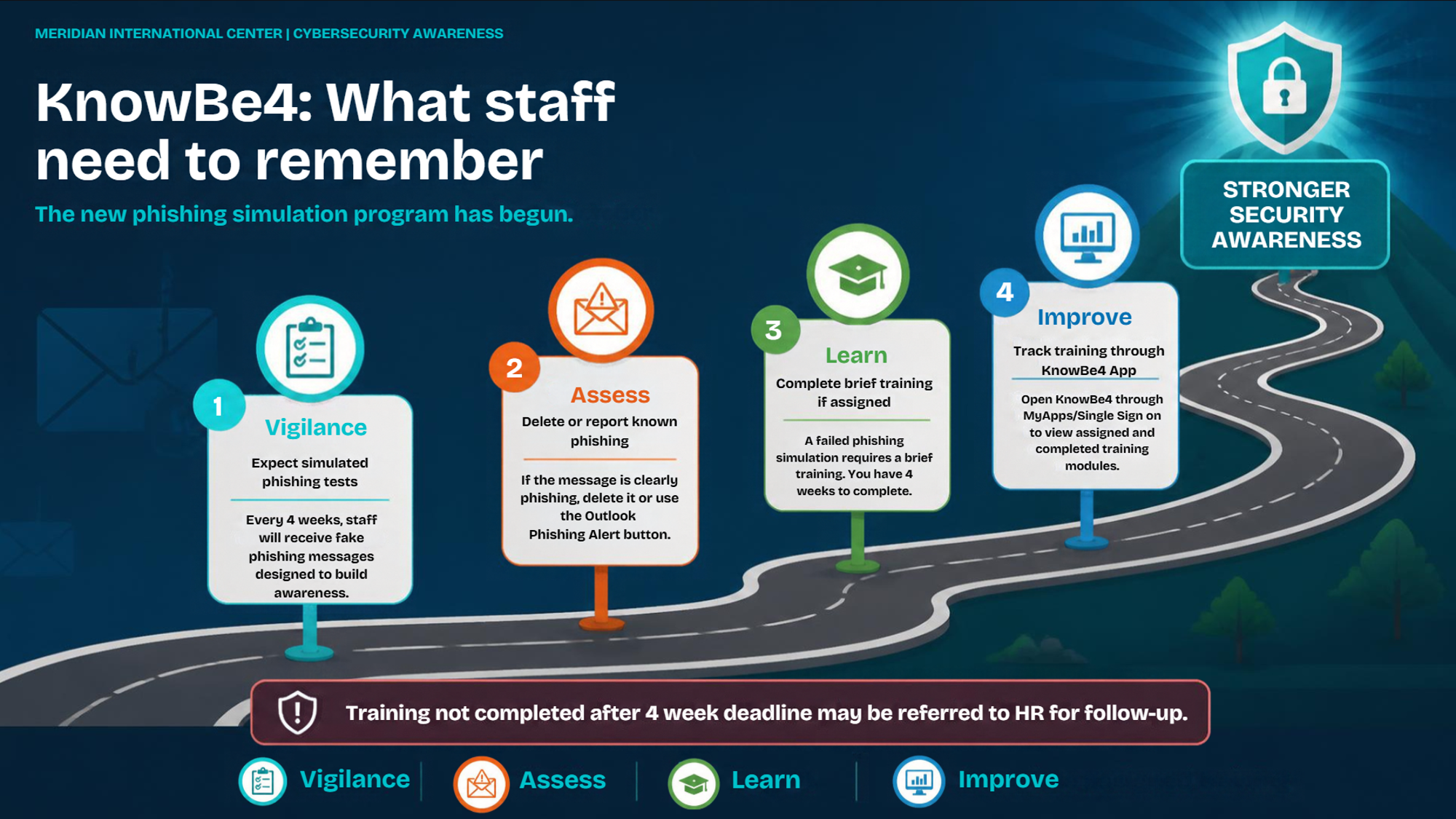
Staff should expect to receive a safe, simulated phishing email approximately every four weeks. The program may use different types of scenarios, including messages containing:
- Suspicious links.
- Attachments.
- Requests for information.
- Quick response codes.
- Telephone numbers or callback requests.
- Urgent or unusual instructions.
Staff will generally not receive advance notice identifying the date, sender, or subject of a simulation. The goal is to provide realistic practice recognizing suspicious messages during normal work.
How to Identify a Suspicious Email
Before responding to an unexpected email, pause and review the following:
- Sender: Confirm that the sender’s display name and email address match.
- Request: Consider whether the request is consistent with the sender’s normal responsibilities.
- Urgency: Be cautious when a message pressures you to act immediately.
- Links: Review the destination before selecting a link.
- Attachments: Do not open an unexpected attachment without verifying it.
- Information requests: Be suspicious of requests for passwords, financial information, personal data, or confidential documents.
- Payment activity: Independently verify unexpected requests involving invoices, banking changes, gift cards, wire transfers, or credit cards.
- Quick response codes and phone numbers: Do not scan or call simply because instructions appear in an email.
Phishing emails may also contain slightly misspelled domain names, generic greetings, poor grammar, unrealistic offers, unusual formatting, or requests for sensitive information.
What to Do When You Know an Email Is Phishing
Do not select links, reply to the sender, open attachments, scan a quick response code, or call a number included in the message.
Use one of the following options.
Delete
Delete the message when you are certain that it is phishing and no additional assessment is needed.
Move to Junk
Move the message to the Junk folder. Block the sender when appropriate.
Report
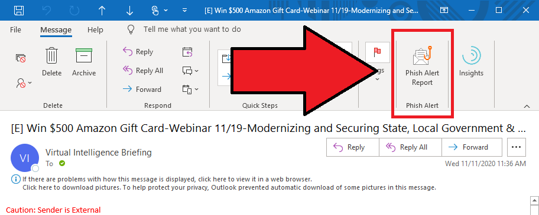
Use the Phishing Alert button located on the Outlook ribbon. Reporting is preferred when the message may require review because it alerts the security team and supports investigation.
If you do not see the Phishing Alert button in Outlook, contact the Help Desk so the issue can be reviewed.
Ask the Help Desk
If the message appears relevant to your work but you are not sure whether it is legitimate, send it to helpdesk@meridian.org for assessment before interacting with it.
If the message is clearly irrelevant spam or phishing, delete it or move it to Junk instead of forwarding it for assessment. This helps the Help Desk focus its review on messages that may affect Meridian’s work or information.
What Happens After an Unsuccessful Simulation
An employee may be recorded as unsuccessful if they interact with a simulated message. Examples include:
- Selecting a simulated phishing link.
- Opening a simulated attachment.
- Scanning a quick response code.
- Calling a telephone number included in the simulation.
- Entering requested information.
- Replying when the scenario is designed to test replies.
The simulation itself is safe. The result creates an immediate learning opportunity and starts the following process.
1. Immediate Feedback
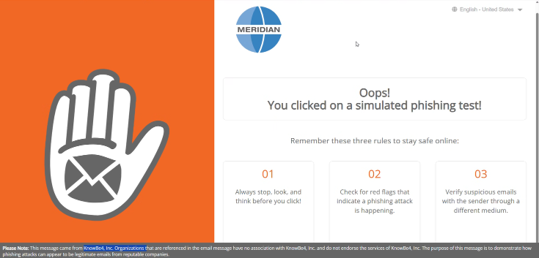
A landing page explains that the message was a simulated phishing test and provides guidance about the warning signs that may have been missed.
2. Training Assignment
KnowBe4 sends an enrollment notification identifying the assigned training and its completion deadline.
3. Training Completion
The employee completes the assigned module and receives a confirmation email when the activity is finished.
How to Access Assigned Training
Assigned training can be accessed without selecting a link in an email.
- Open Meridian’s MyApps Single Sign On page.
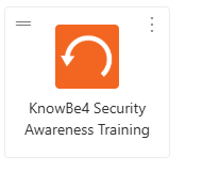
- Select KnowBe4 Security Awareness Training.
- Open the Training tab.
- Select the assigned course.
- Watch the required content and answer the knowledge check questions.
- Continue until the module confirms completion.
The KnowBe4 training page shows assigned, pending, and completed courses. If a training activity is only partially completed, staff can return to the application later to finish it before the deadline.
Training Requirements
When training is assigned after an unsuccessful simulation, the following requirements apply:
- Typical duration: Approximately 5 to 10 minutes.
- Completion deadline: Within four weeks of assignment.
- Who must complete it: Any staff member or intern who is assigned training.
- Tracking: KnowBe4 records the assignment and completion status.
- Confirmation: Staff receive a confirmation email after completing the training.
Training is required when assigned. The short training is intended to address the specific behavior or warning signs associated with the simulation.
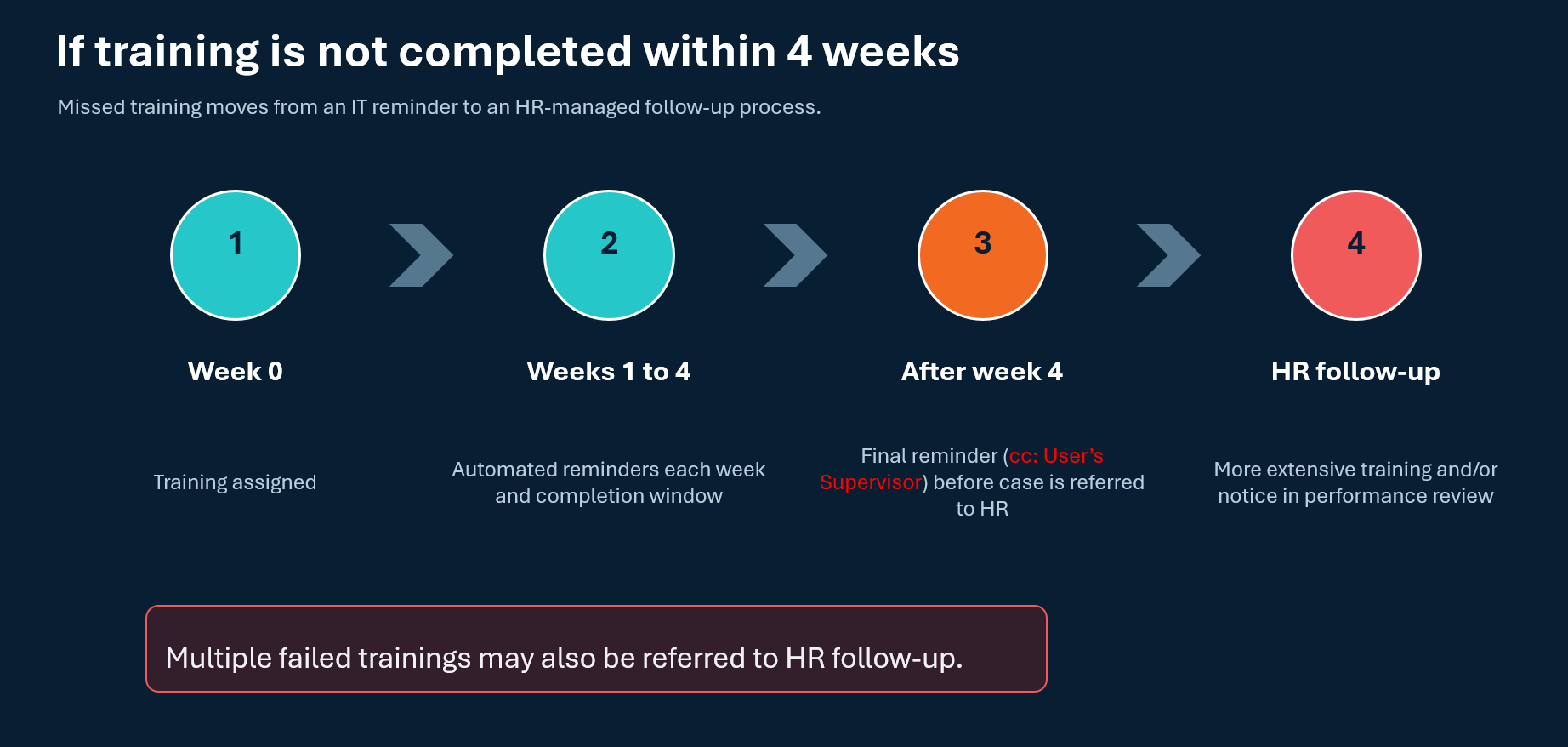
What Happens if Training Is Not Completed
The following process applies when assigned training is not completed within the required period.
Human Resources Follow Up
If the training remains incomplete, IT may refer the matter to Human Resources. The follow up may include more extensive cybersecurity training and may be noted during the performance review process.
Repeated unsuccessful results involving the same or similar training may also be referred to Human Resources for follow up.
How to Evaluate a KnowBe4 Notification
A malicious sender could attempt to imitate a KnowBe4 notification. Staff should not assume that a message is safe simply because it mentions KnowBe4.
Review every message using the same phishing checks applied to other email:
- Confirm the sender and domain.
- Review the request and context.
- Check for external sender warnings.
- Avoid selecting a link when you are uncertain.
- Access assigned training directly through Meridian’s MyApps Single Sign On page.
- Contact the Help Desk when additional verification is needed.
Official KnowBe4 training notifications are configured to come from within Meridian’s environment. However, the absence of an external sender warning should be treated as one verification factor, not a replacement for careful review.
Frequently Asked Questions
Will interacting with a simulated message damage Meridian’s systems?
No. KnowBe4 simulations are controlled exercises designed to provide safe practice. An interaction may be recorded as an unsuccessful simulation and may result in assigned training, but the simulation itself is designed not to harm Meridian’s systems.
Will I be penalized simply for an unsuccessful simulation?
The program’s purpose is learning and risk reduction. An unsuccessful simulation results in brief, targeted training. Failure to complete assigned training by the deadline, or repeated unsuccessful results involving the same training, may lead to additional follow up.
How often will simulations occur?
Simulations will occur approximately every four weeks.
How long is assigned training?
Most assigned modules are expected to take approximately 5 to 10 minutes.
How long do I have to complete training?
Assigned training must be completed within four weeks.
What should I do if I do not see the Phishing Alert button?
Contact the Help Desk for assistance. Do not interact with a suspicious message while waiting for the button issue to be reviewed.
What should I do if I do not trust a link in a training notification?
Open Meridian’s MyApps Single Sign On page and access KnowBe4 Security Awareness Training directly.
Can I return to a partially completed course?
Yes. The KnowBe4 application tracks assigned, pending, and completed training. Employees can return to finish an activity before its deadline.
Key Points to Remember
- Expect safe, simulated phishing emails approximately every four weeks.
- Pause before acting on an unexpected email.
- Verify the sender, request, links, attachments, urgency, and context.
- Delete or report a message when you know it is phishing.
- Contact the Help Desk when a relevant message is uncertain.
- Access training through MyApps when you do not trust an email link.
- Complete assigned training within four weeks.
- Apply what you learn during future simulations and daily email use.