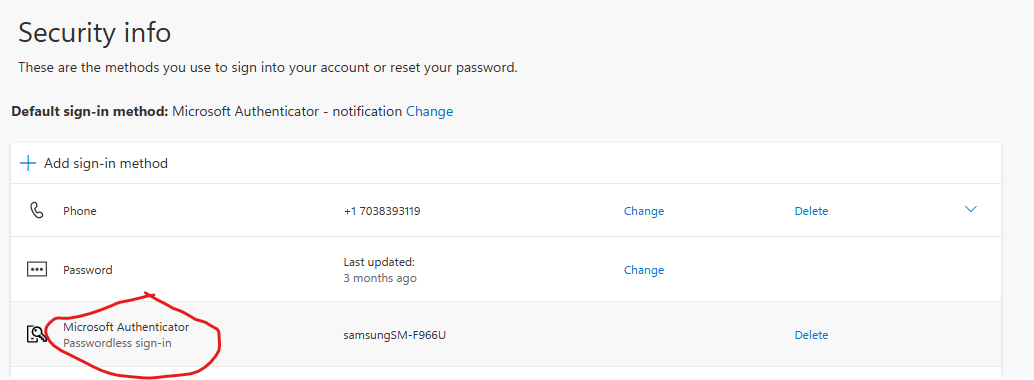
Meridian requires Passwordless access to Microsoft Office 365 and SSO applications. Once completed, users will use both biometrics and code from Authenticator app to access their account.
(Note: Passwords and password change policy are still required for your assigned computer, Secure File, and PaperCut.)
Please use the following instructions to setup Passwordless for Microsoft Office 365.
STEP 1. Authenticator Phone App Setting Change
A. Open your phone's Microsoft Authenticator App and select Meridian International Center from your list of accounts.
B. Tap the option labeled “Set up passwordless sign-in request.” (see image 1 below.)
C. Select Continue, then approve the request when prompted. (see image 2)
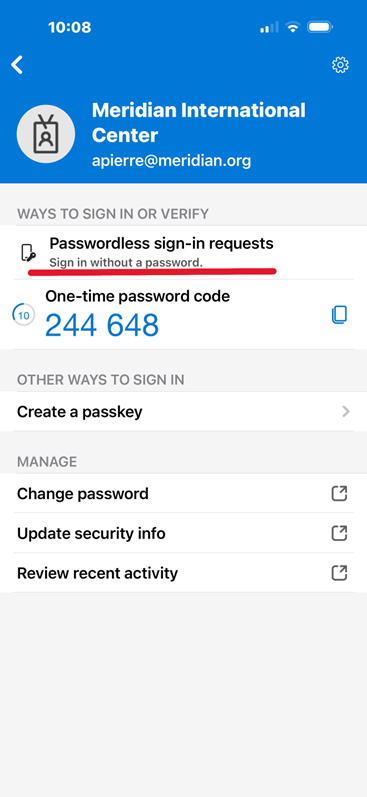
D. Once completed, return to your account in the Authenticator app. Under Ways to sign in, you should now see Passwordless sign-in requests listed as the first option. (see image 3)
Step1 is complete. See below for Step 2.
Image 1.
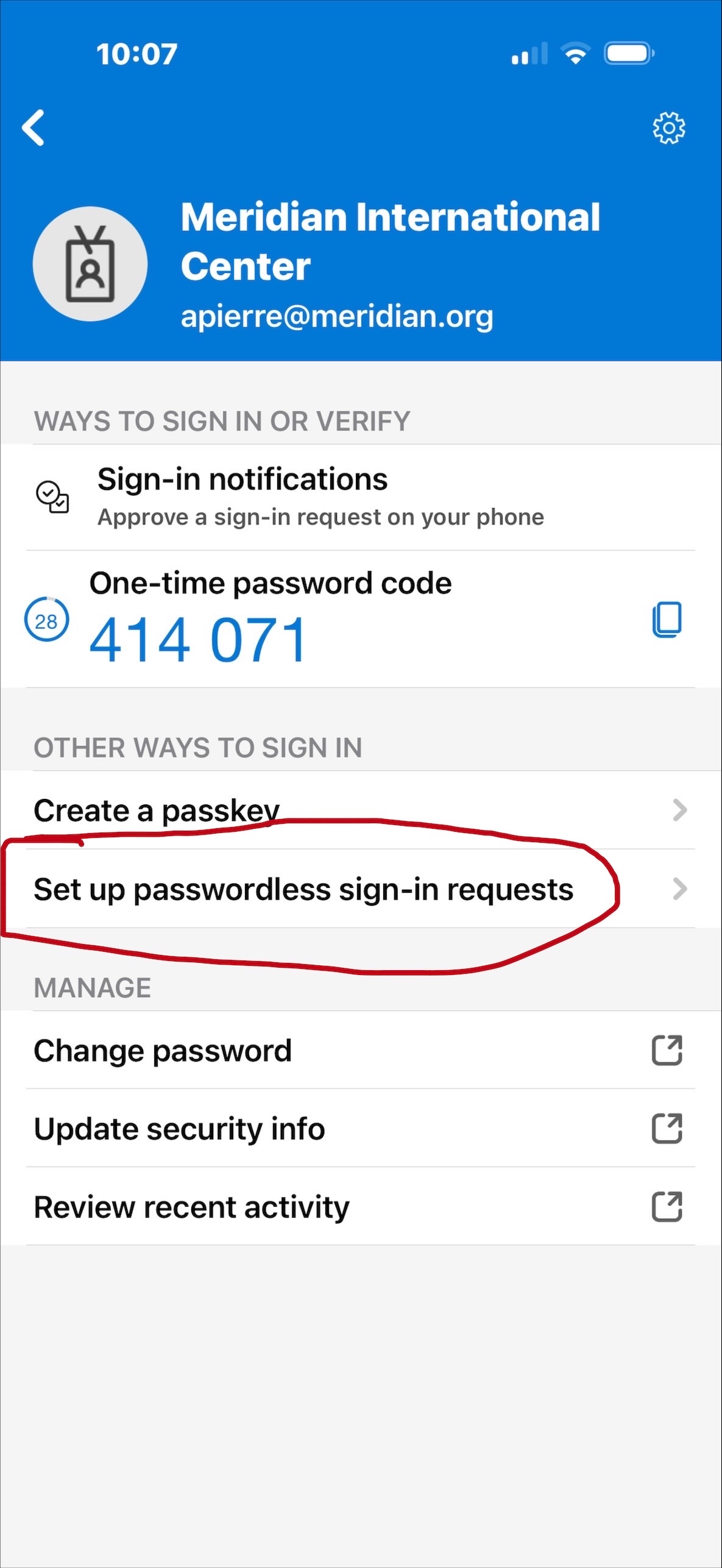
Image 2
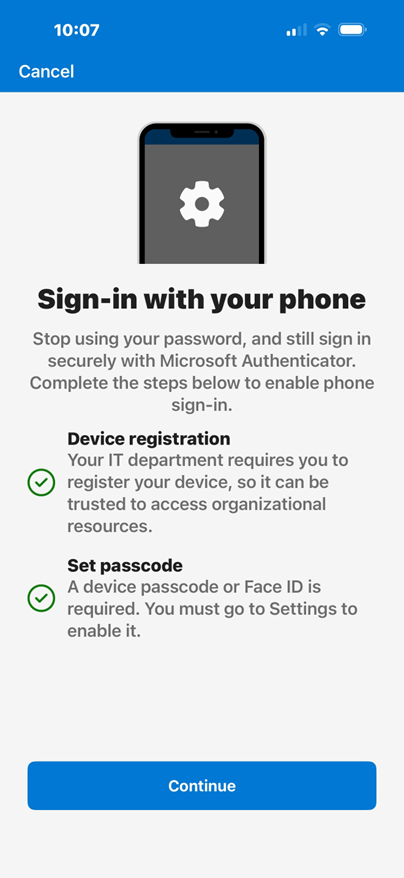
Image 3.
STEP 2. Change Microsoft Cloud Login Sign In Default
A. Open new private browser window using either "New InPrivate Window" with Edge or "Incognito" with Google Chrome.
B. Type in the address bar portal.office.com and select option to "Sign in" located at top right corner. (see image 4)
C. When prompted for sign-in, choose “Sign in another way”. (see image 5) Some may see option "Use app instead".
D. On the next screen choose “Approve a request on my Microsoft Authenticator app” (see image 6). Your selection will be remembered when you sign in again. The next time you sign in, it will prompt you for your approval in the Authenticator app, instead of asking you to fill in your password.
E. Finally, make sure your setting are correct, by going to your Security Info Page. Check to confirm that "Passwordless sign in" is listed under your Sign in methods. (see image 7). If so, you're good.
Done!
Image 4.
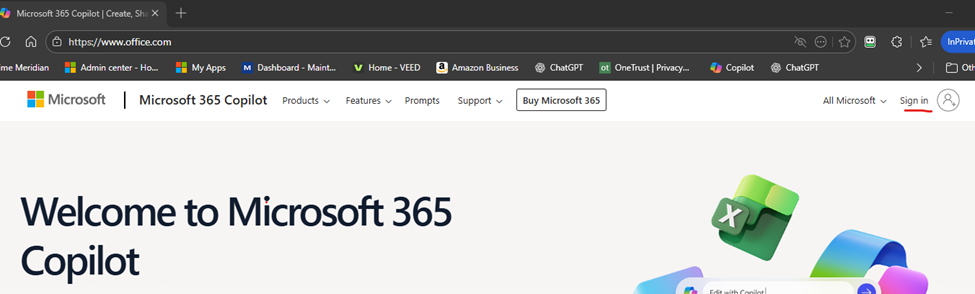
Image 5.
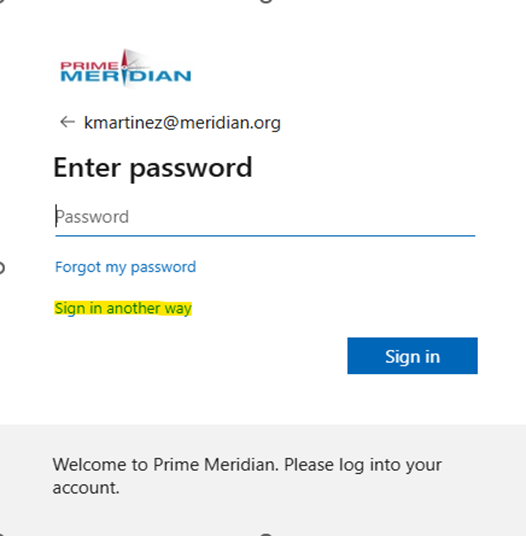
Image 6
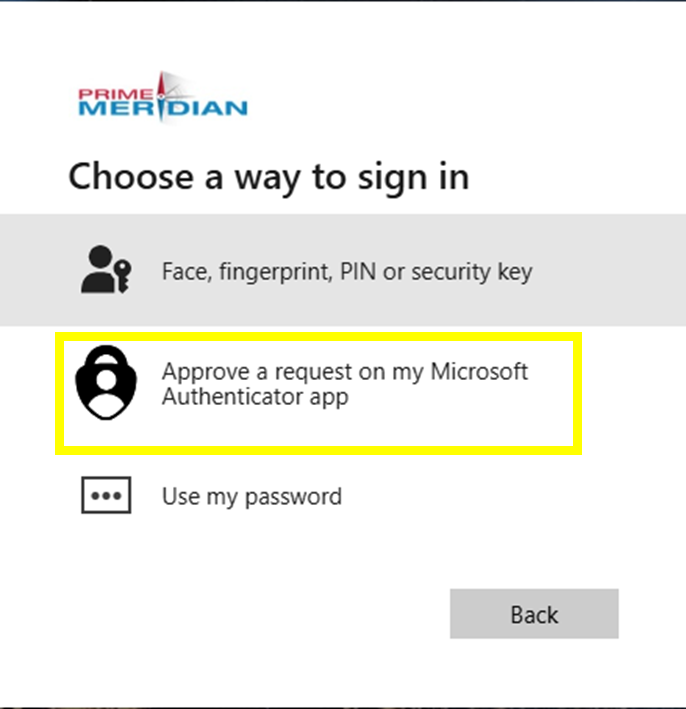
Image 7