
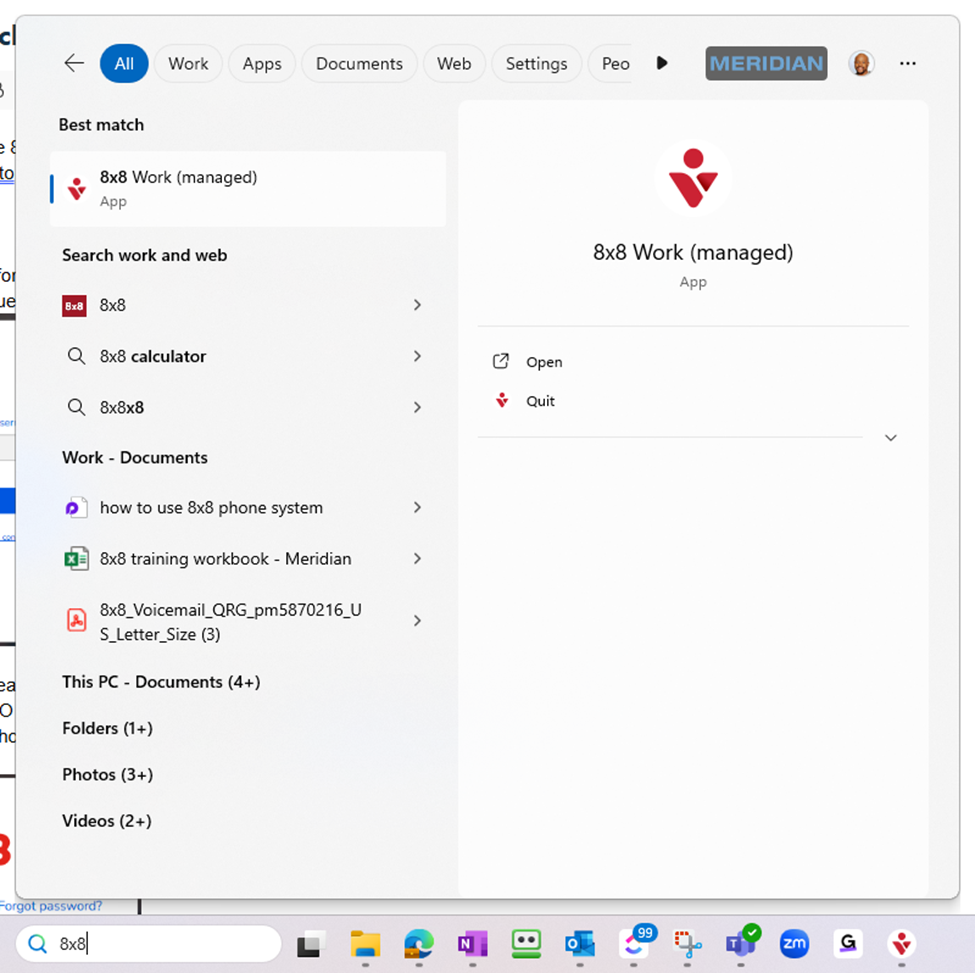
All users should have the 8x8 Desktop App installed on their PC. To find the 8x8 app, do a search in the taskbar for 8x8 and click to “Open”.
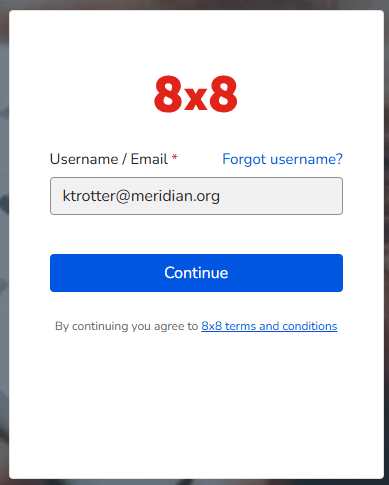
Once you open the app for the first time, you will see the sign in option. Simply, enter your work email in the first prompt, click Continue.
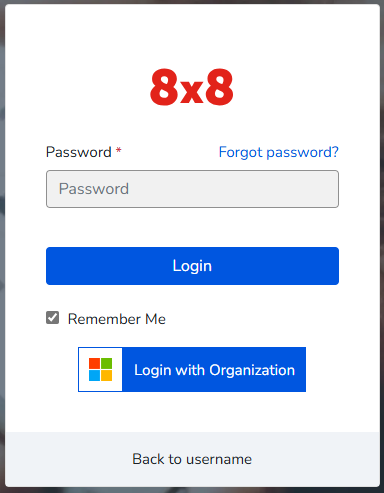
On the next prompt, instead of entering your password, click “Login with Organization”. You’ll then go through the standard SSO login process. As long as you know your Microsoft password and have Authenticator app, you should be good. If not, please contact helpdesk@meridian.org.
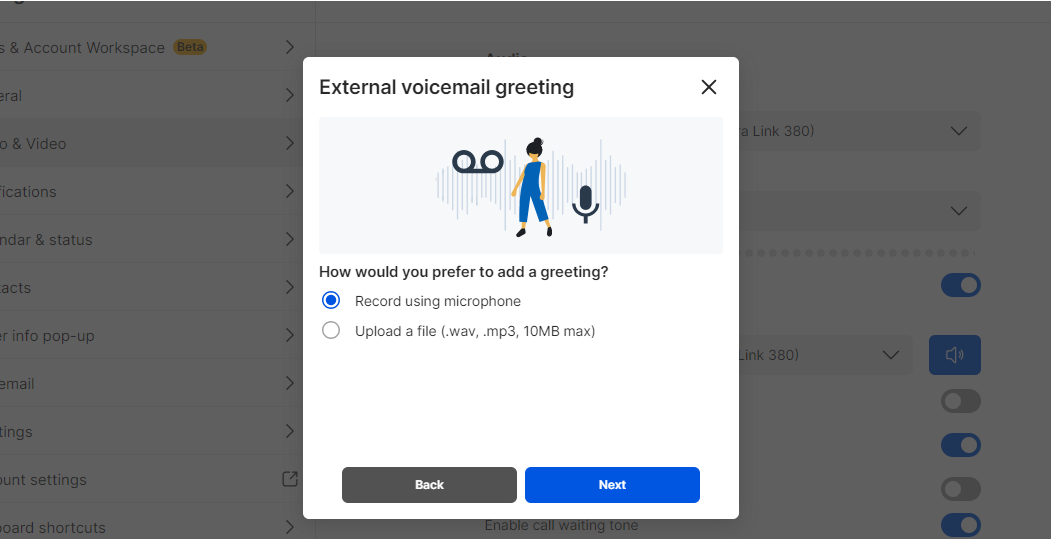
Once you’ve accessed your 8x8 Desktop App for the first time, you should see a popup to begin setting up your External voicemail greeting. See image below.
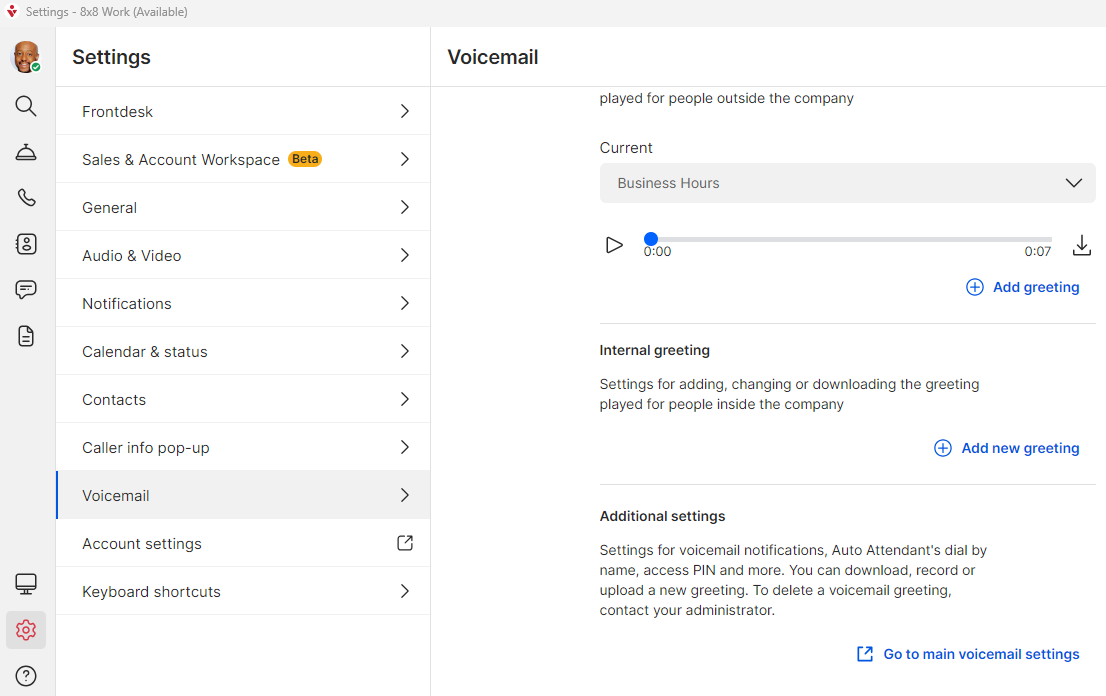
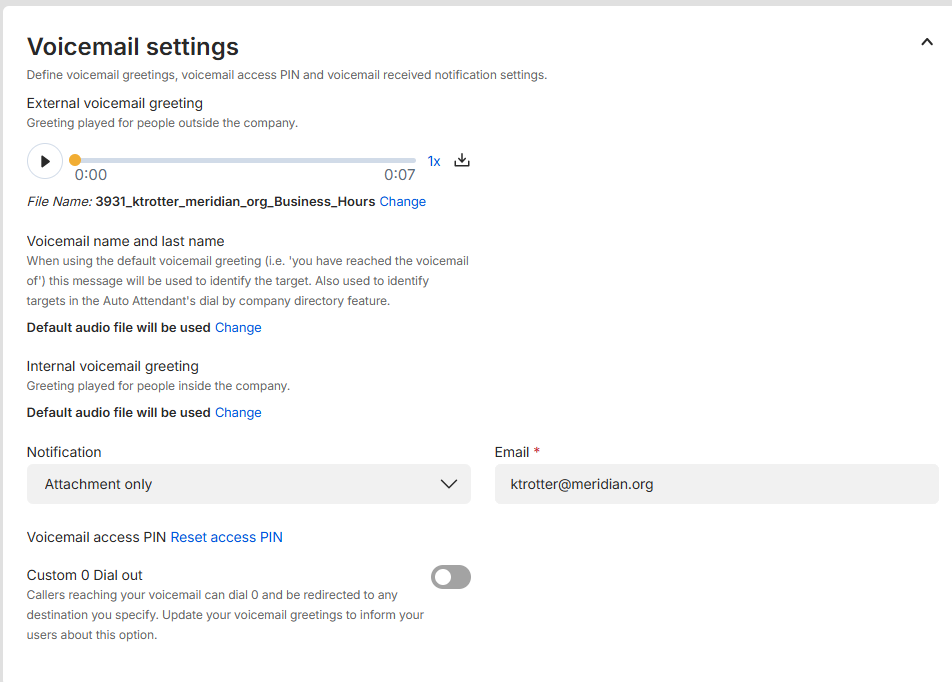
To reset your Voicemail access PIN, click the gear icon for Settings. Then click “Voicemail” followed by “Go to main voicemail settings” under Additional settings option. See images below.
Click "Reset access PIN" highlighted in blue. The PIN must be at least 6 numbers.
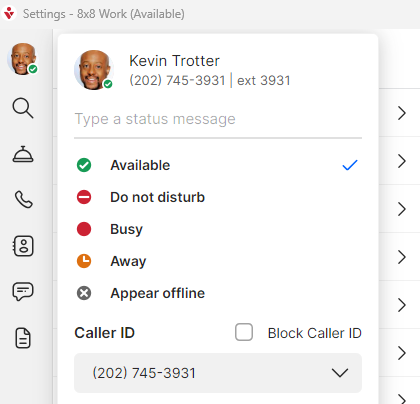
Be sure to check that your work phone number and Ext is accurate. Sometimes during porting, phone numbers could be assigned incorrectly. Please confirm your number is the same as before.
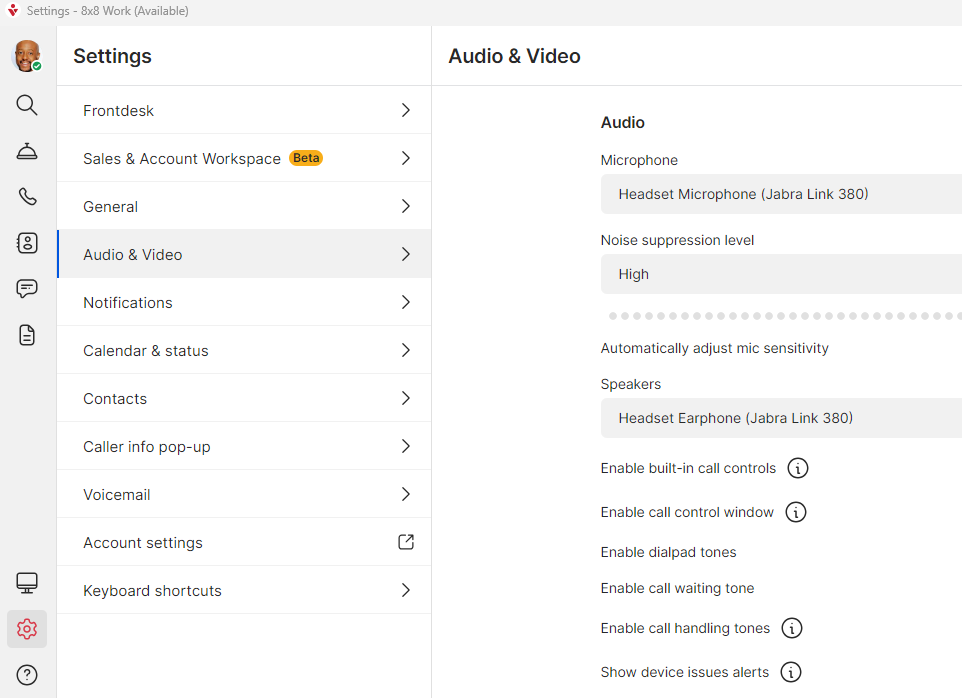
Confirm your Audio settings are correct. Return to settings by clicking the gear icon.
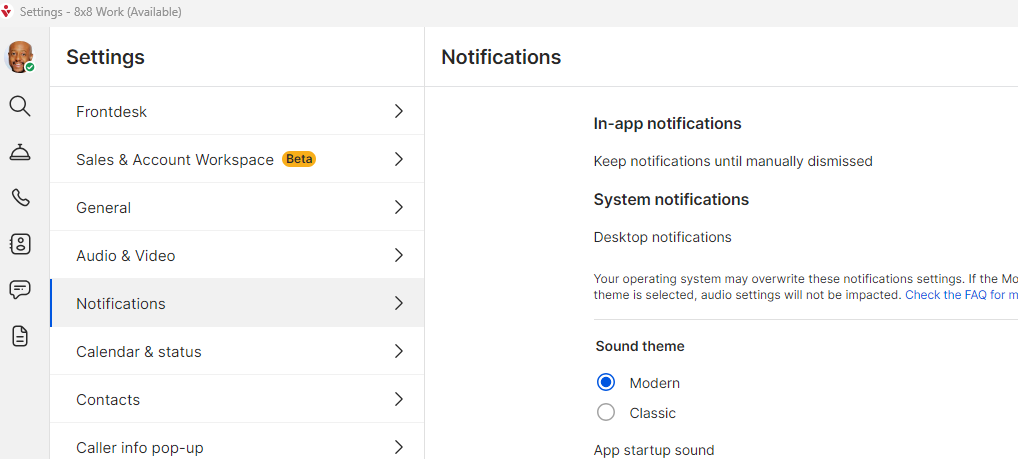
Adjust your Notification settings.
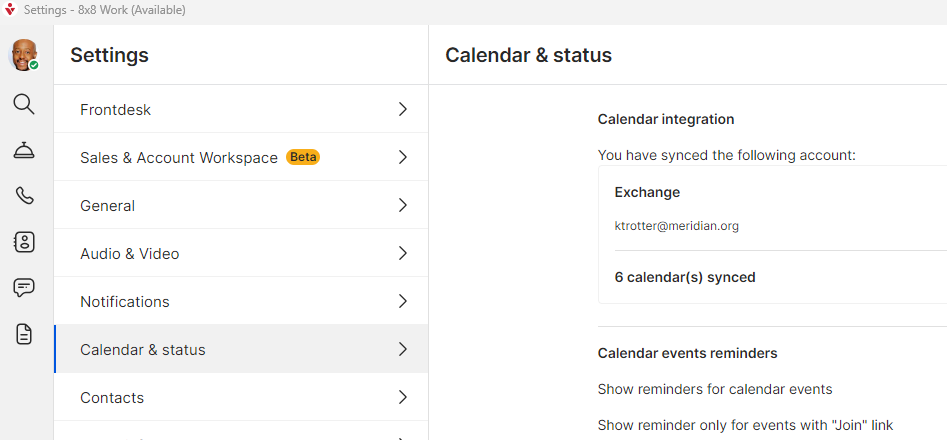
Sync your Calendar and Contacts. Both syncing options require you to sign into your Microsoft account via SSO.
Finally, reminder to pin the 8x8 Desktop app to your taskbar.
Done!