
Outlook Web Access (OWA) is a full-featured, web-based email client with the look and feel of the Outlook client. With OWA, users can access their mailboxes from any internet browser (Chrome, Edge, Firefox, Safari) regardless of whether or not the computer or phone is equipped with Outlook.
Here are instructions to add OWA to your phone's home screen.
1. Select your preferred browser from your phone (Chrome, Edge, Firefox, Safari).
2. Once the browser opens, type www.outlook.com in the address bar.
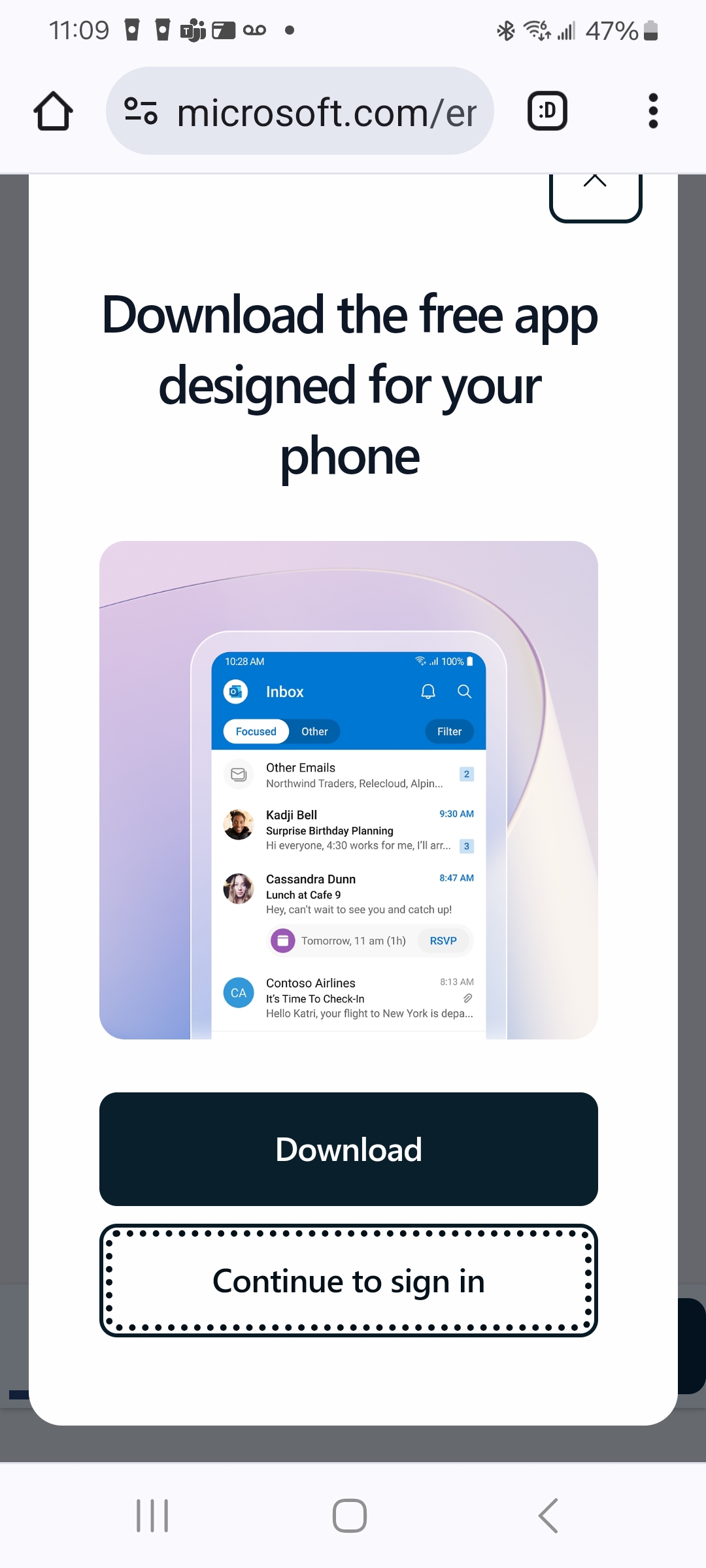
3. When you see sign in option, click and enter your work email and password. You may also see "Continue to sign in". If so, click to sign in again. Do not select "Download". See image 1 and 2 below.
IMAGE1
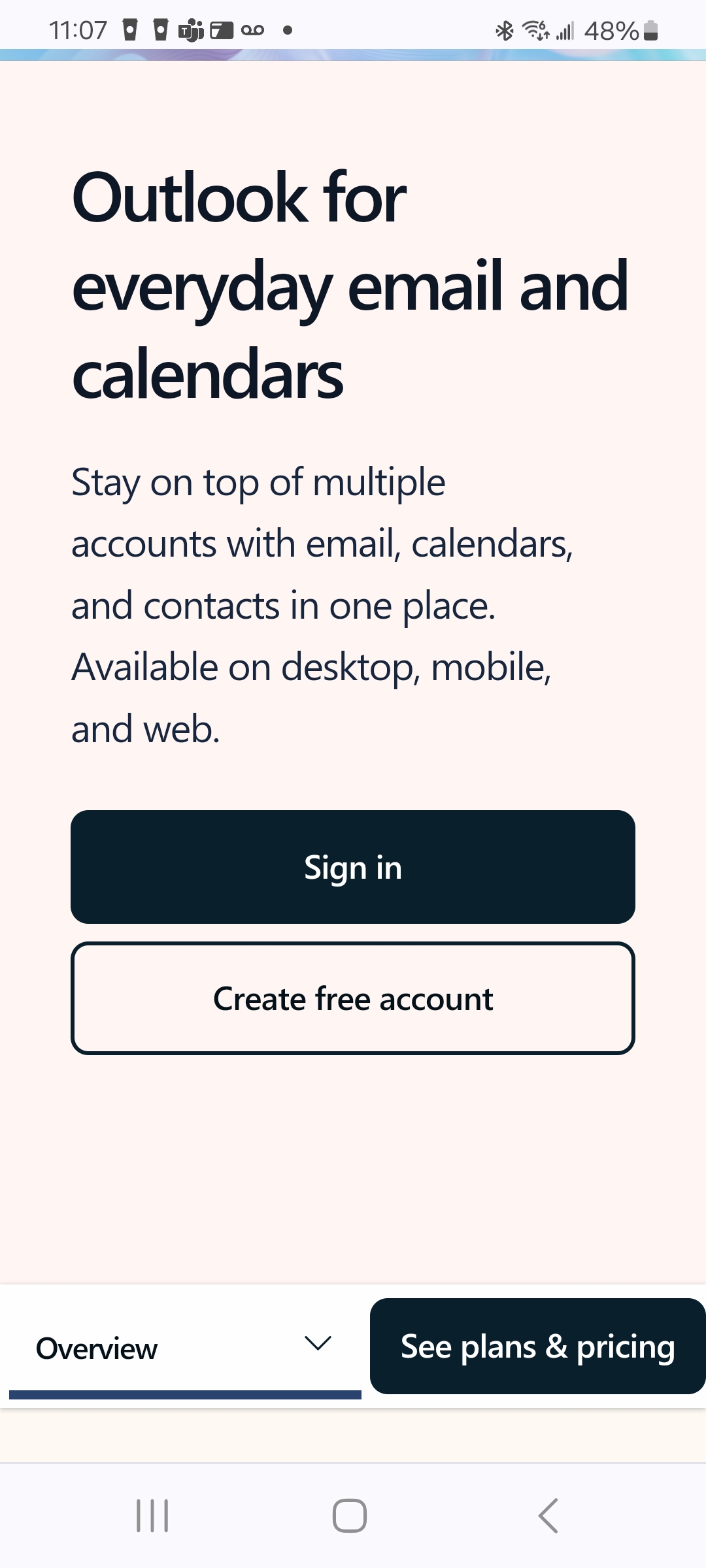
IMAGE 2
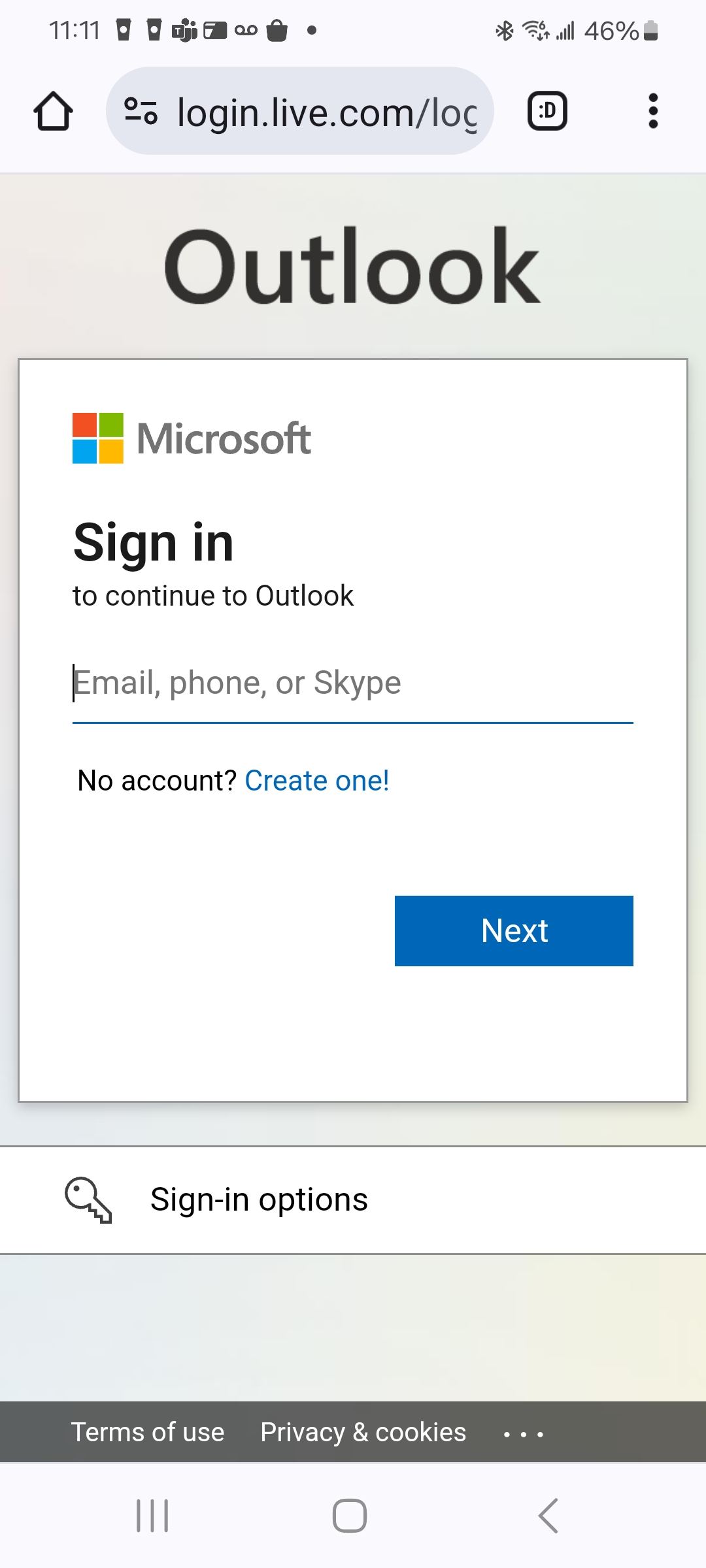
4.During sign in you may receive MFA notice. Follow prompts.
IMAGE 3
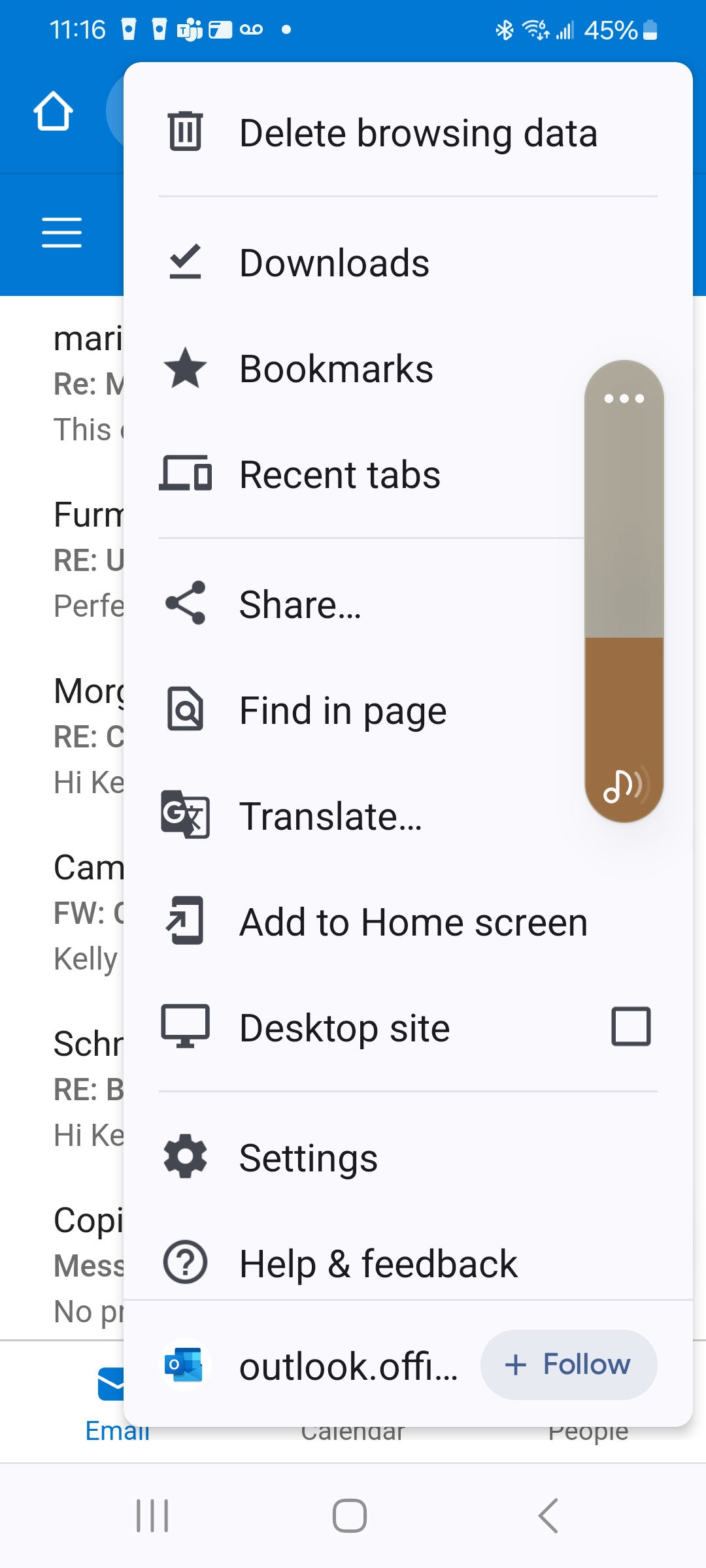
5. You should be signed in. Now it's time to save OWA as a shortcut to your phone's home screen. If you're using Chrome with Android, click three dots at top right to access settings. Then scroll down to "Add to Home screen". See images 4 and 5 below. For other phone type instructions to add website as shortcut, see HERE.
IMAGE4
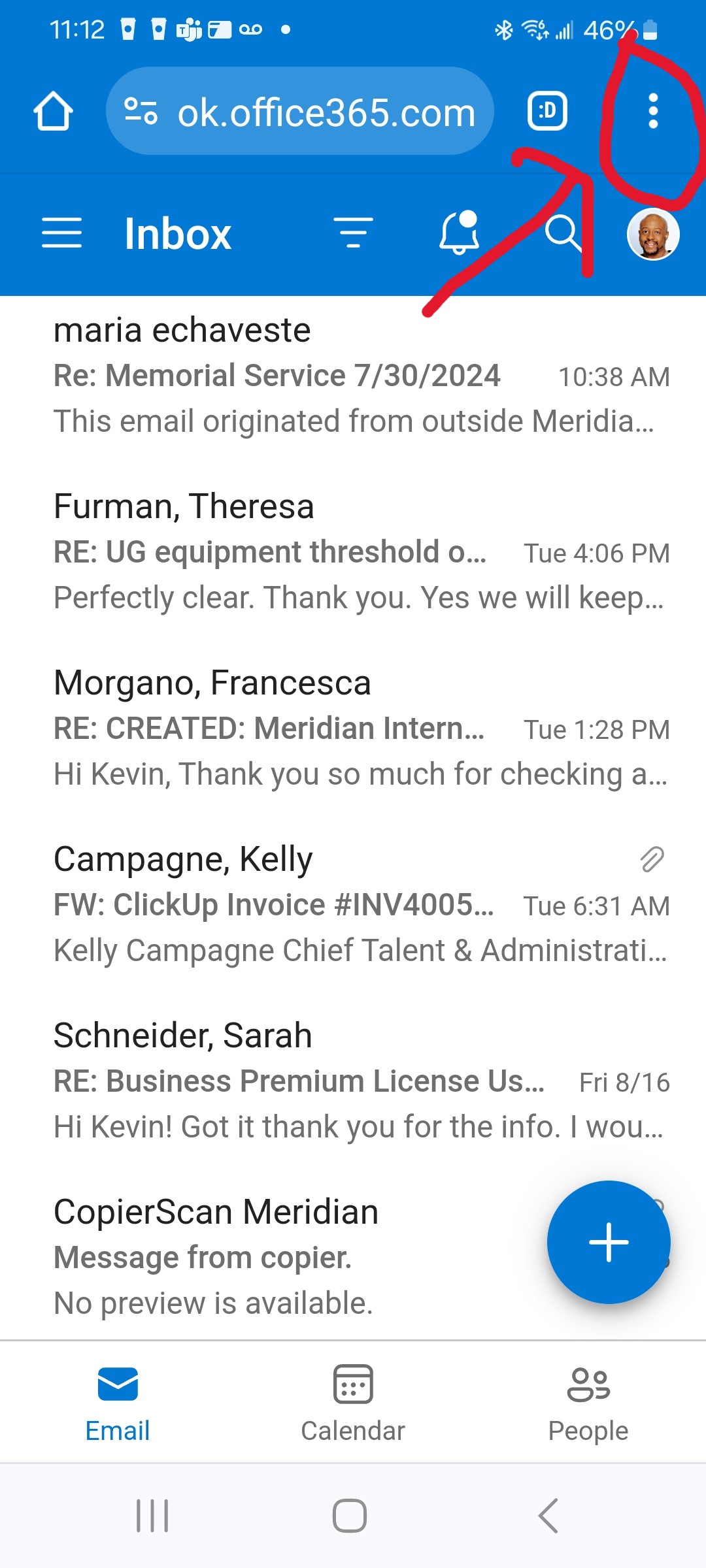
IMAGE 5
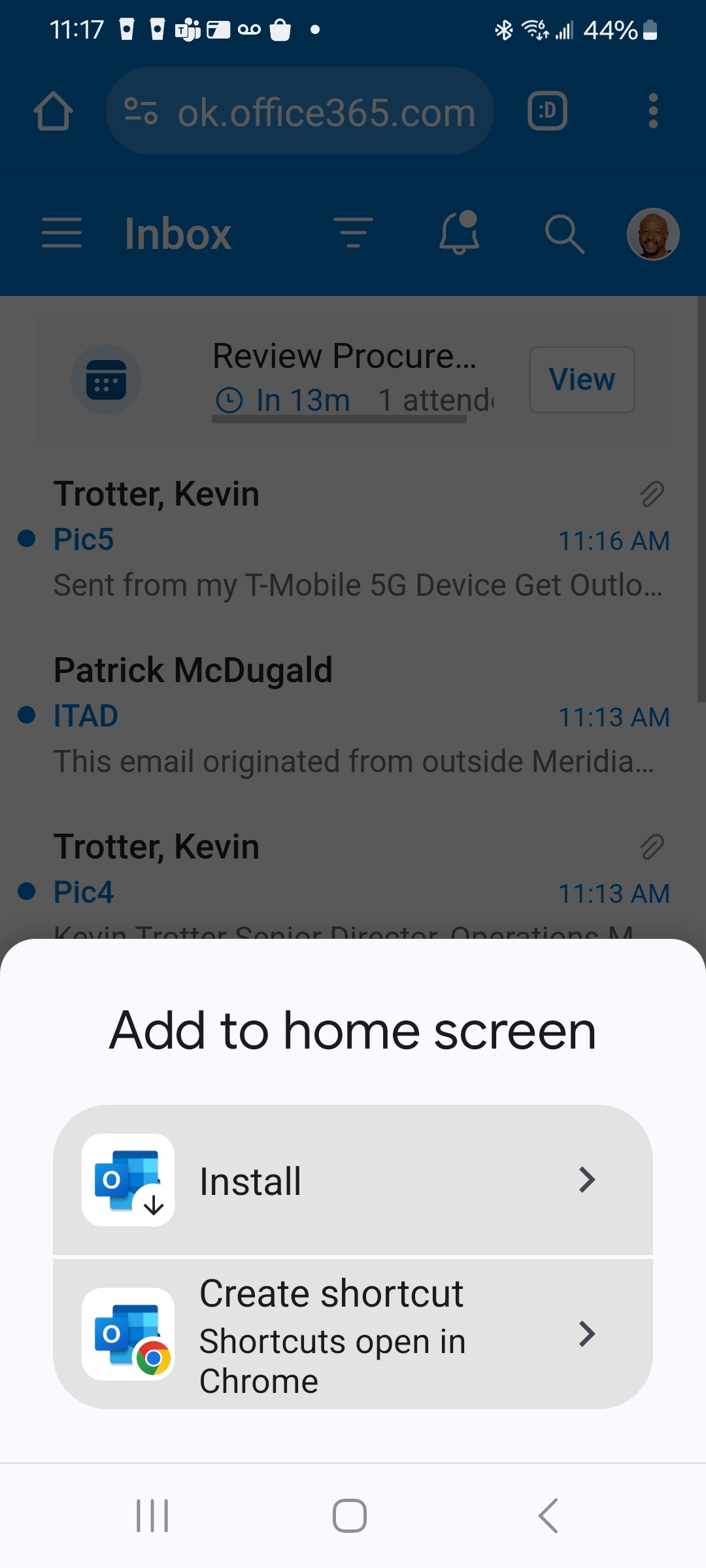
6. Next, click option to "Create shortcut". Do not install.
IMAGE 6
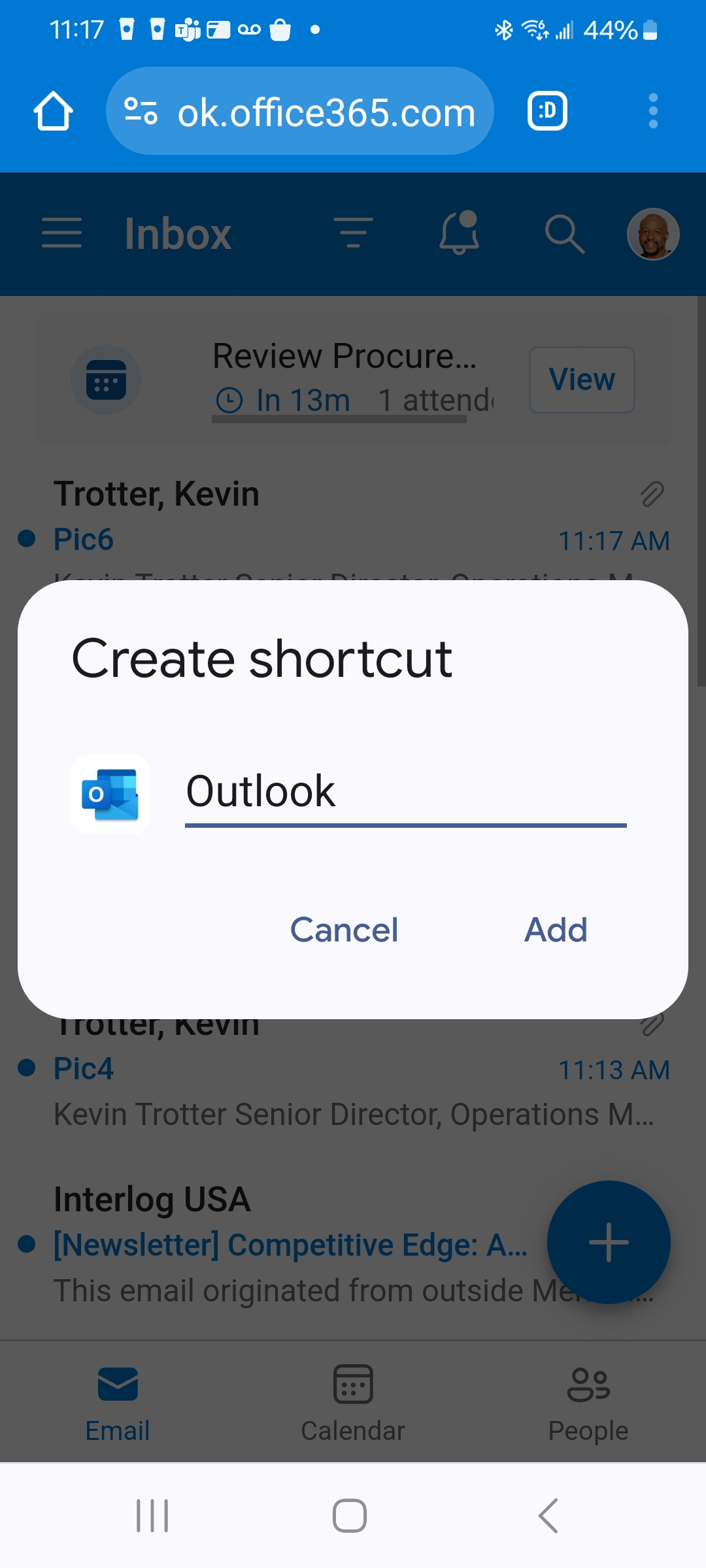
7. Here you can rename or keep shortcut name "Outlook". See image 7.
IMAGE 7
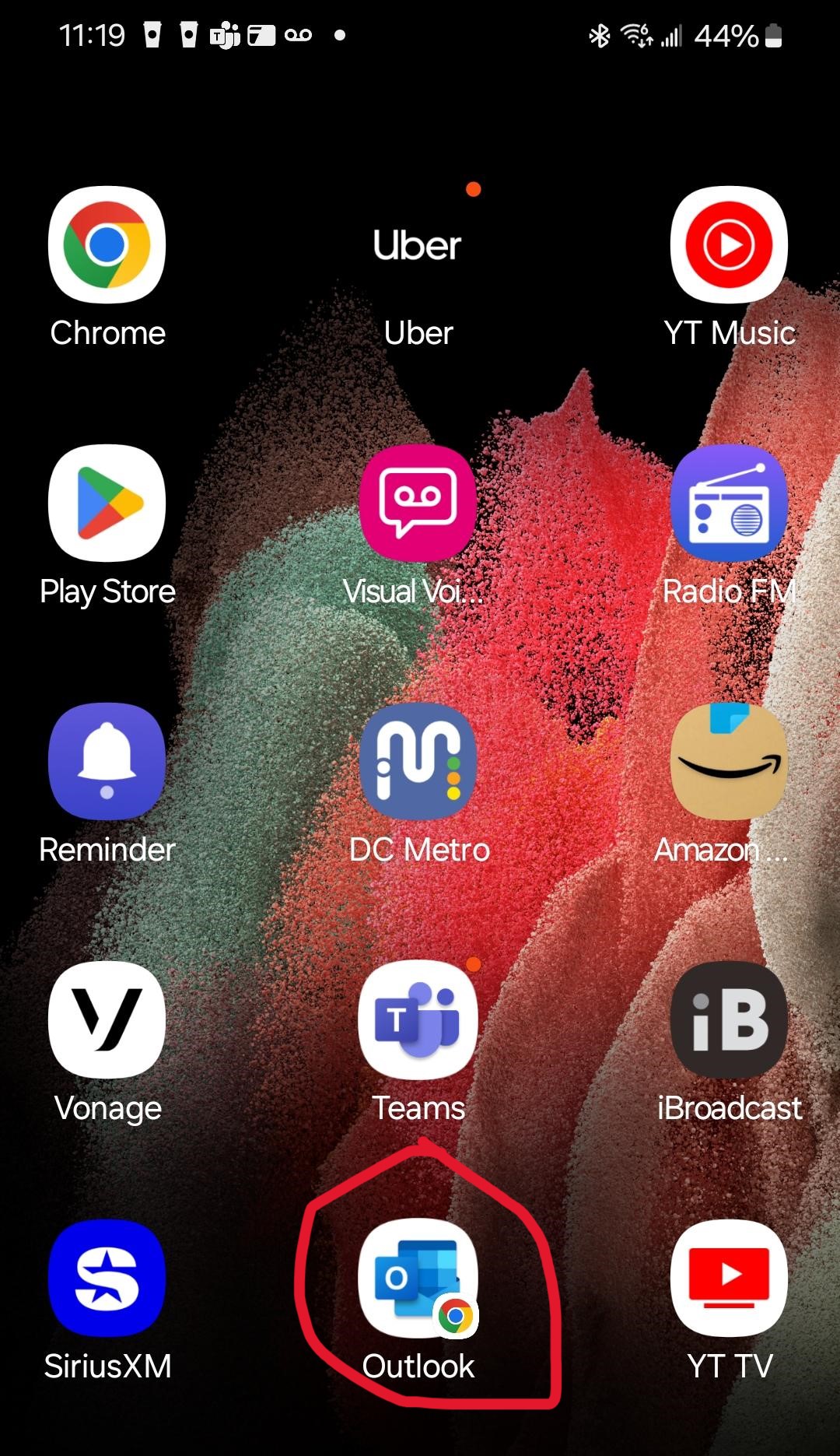
Finally, click "Add". You should now see OWA shortcut on your home screen. You will know it's OWA by the browser icon on the lower left side of short. See images 8 and 9 below.
IMAGE 8
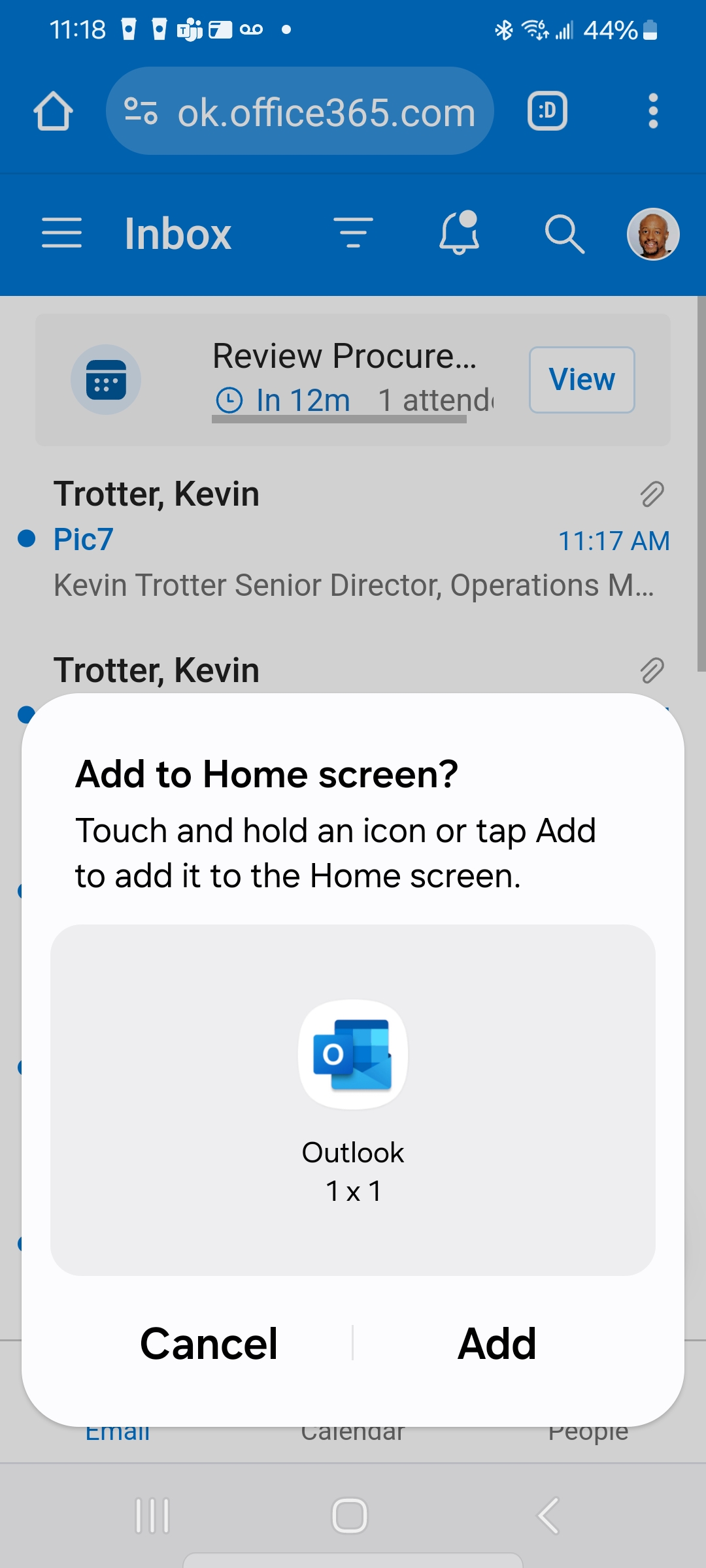
IMAGE 9
You're done!