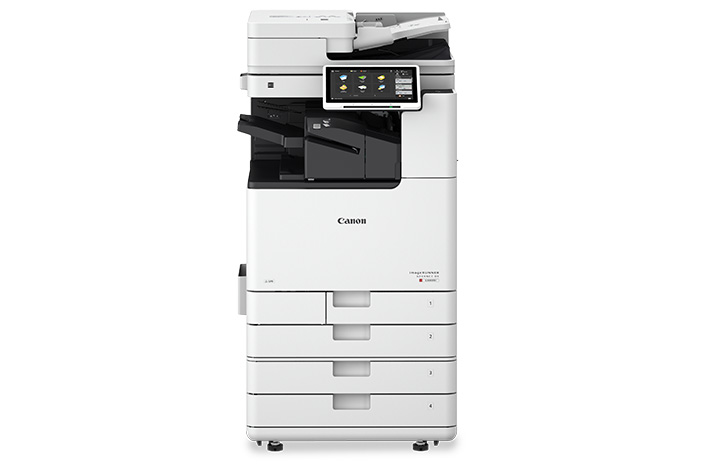
Before printing to Canon Copier, you will need to do the following:
Register your Papercut access at the copier.
To register, please scan your security card at any Canon copier. See steps below.
1. From the copier display screen, enter your work email for username and Microsoft password. If you don’t know your Microsoft password, please contact helpdesk@meridian.org.
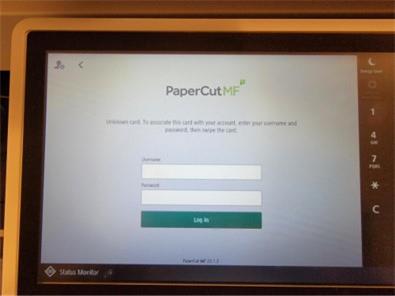
2. You’re done with registering! You only need to register once upon first use of copiers.
Install printer driver from Papercut Print Deploy client:
1. Make sure your computer is connected to Meridian's internet. Installation does not work outside Meridian's domain.
2. Check that you have PaperCut Print Deploy client installed on your computer by clicking on your lower taskbar.
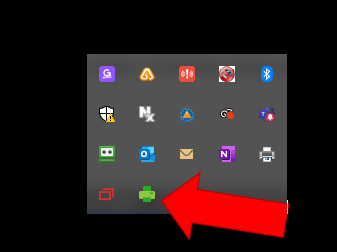
3. Look for Papercut's green printer icon. 
4. Right click the Papercut icon and select option to "View my printers"
5. Click the "Add printers" tab.
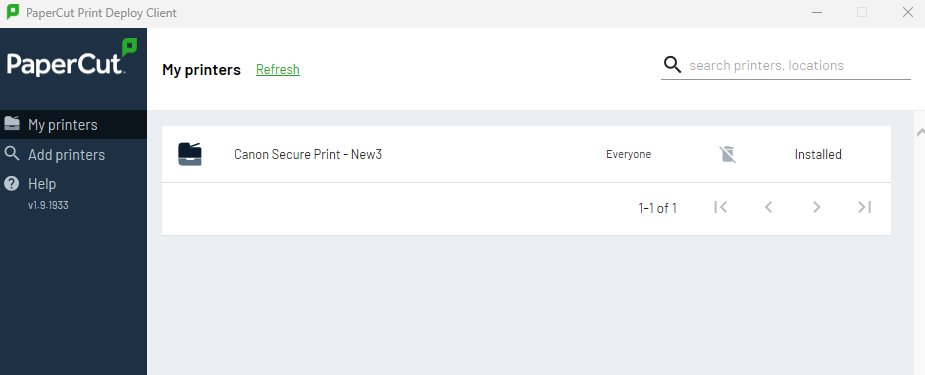
6. On next screen you should see printer named Canon Secure Print- New3.
- Driver Installation
When prompted with an option to “Install” the printer driver, please proceed using your Microsoft password.- Installation may take up to a minute.
- If your password is not accepted, try updating it—this may be due to the 60-day password expiration policy.
- Confirmation
Once installed, you should see Canon Secure Print - New3 as a printer option. Refer to the image below for confirmation. - Troubleshooting
- If you do not see Canon Secure Print – New3 printer as an option, try restarting your PC.
- If issues persist, please contact helpdesk@meridian.org for assistance.
To learn more about the new Canon copiers and PaperCut, click on images below.