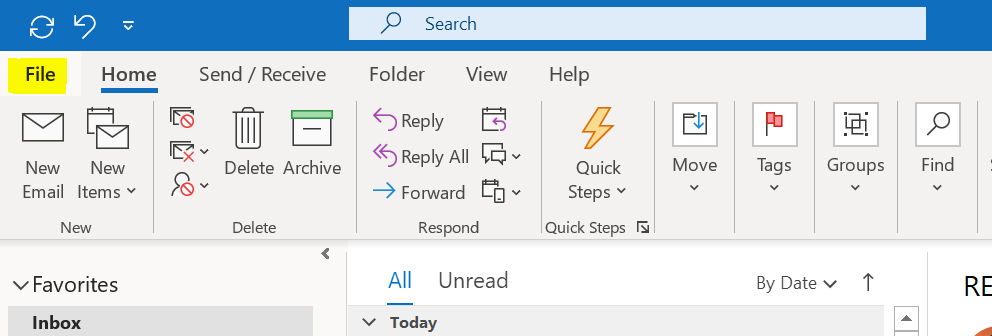
Before starting, make sure you have copied the URL for the FileDrop. For Finance, it can be accessed here: https://securefile.meridian.org/filedrop/Finance
From the Outlook app, click on the “File” tab.
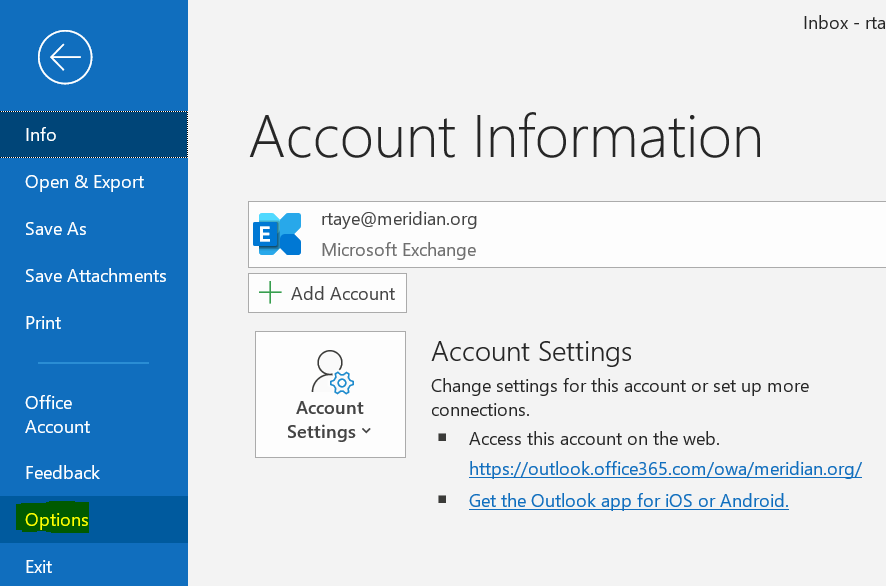
Followed by "Options".
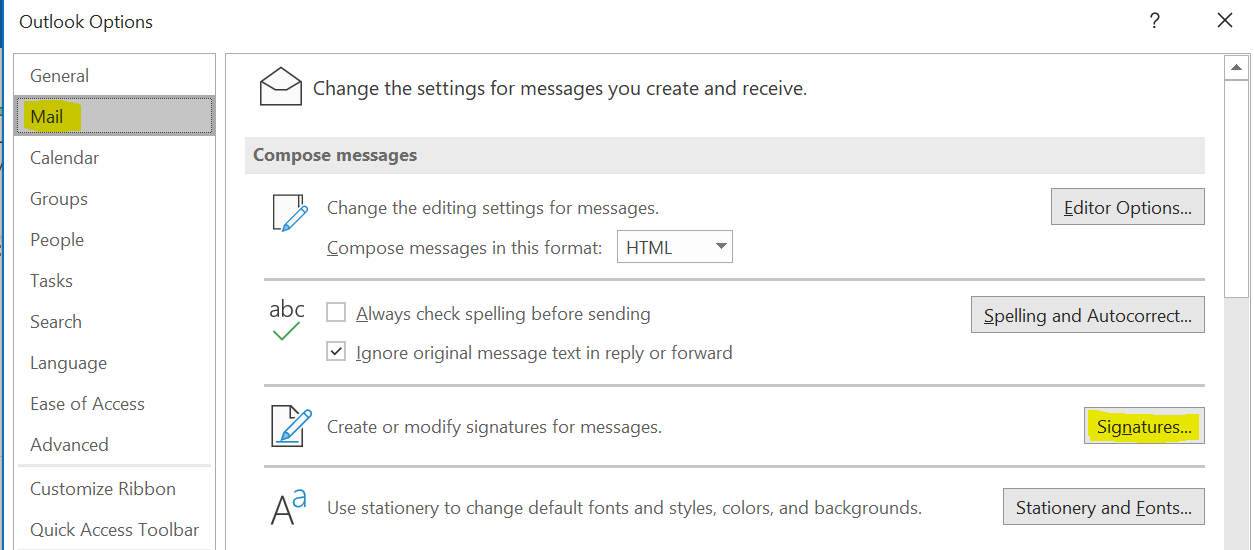
Select the "Mail" tab in the list under General then click on the “Signatures” button on the right side next to "Create or modify signatures for message".
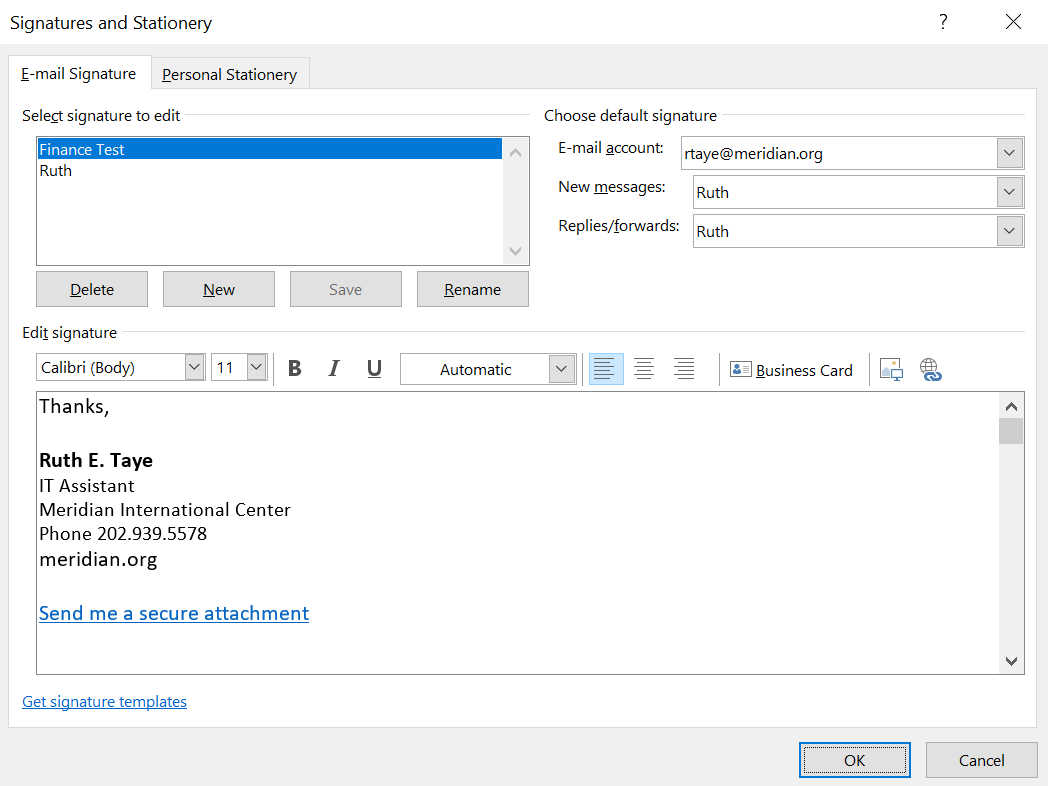
Enter and highlight the text that you would like to hyperlink to the Filedrop site. Here, I’m using the phrase “Send me a secure attachment”. When users click on the link, they will be taken to the Filedrop webpage.
Next, click on the globe icon with the link found next to where it says “Business Card”
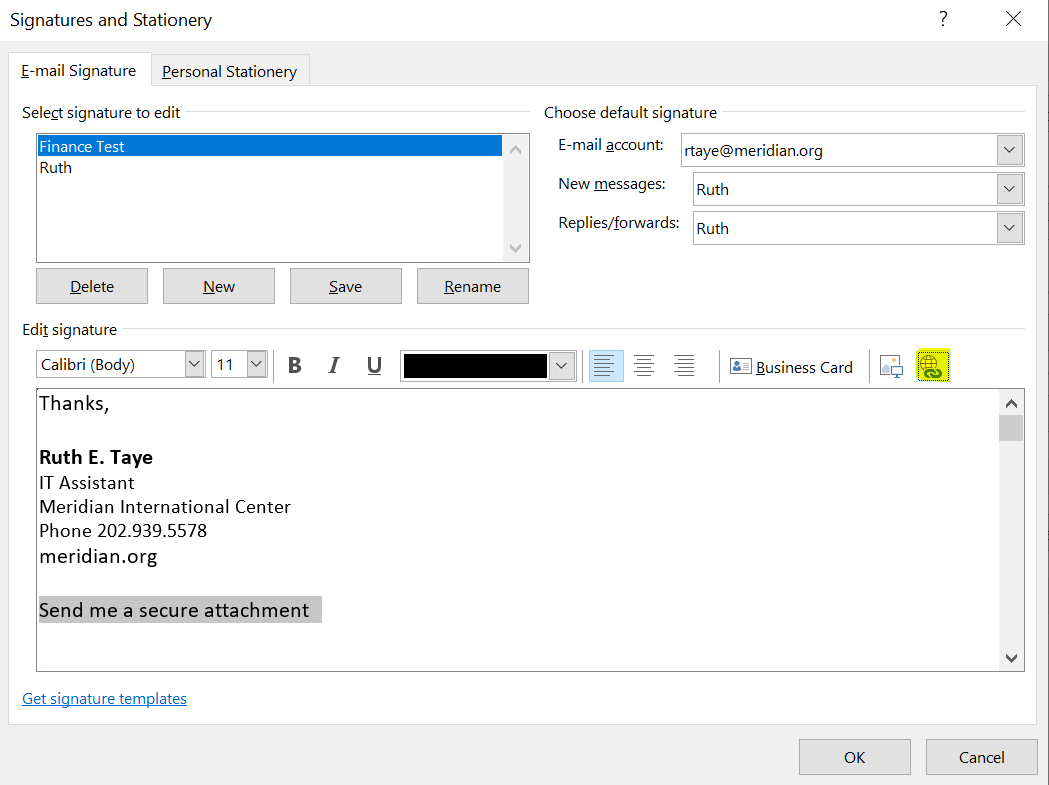
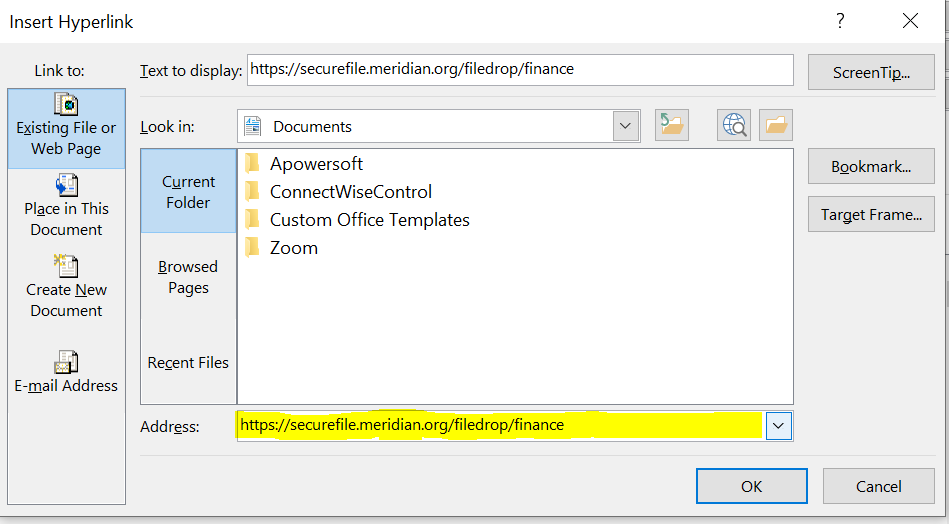
That will open up the following window. Paste the link for the Filedrop you copied earlier into the “Address” bar and press "ok".
Your signature will now have a link on the text you have specified, like the following. You can make this your default signature if you wish by changing the settings under “Choose default signature”. Press “Ok” when done.