Use Assign Policy in Outlook to tag e-mails or folders with special category or sensitive PII data for retention. Once the retention deadline is reached, the tagged e-mail or e-mails within the tagged folder will be PERMANENTLY DELETED (No Recovery).
Assigning Retention Policy for E-mails
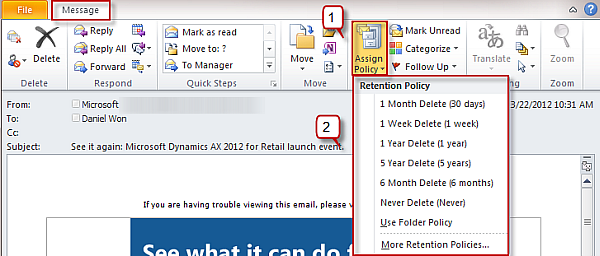
- First, open Outlook desktop app, click on any e-mail or create new e-mail.
- At the top center ribbon, click option "Assign Policy".
- Next, enter the retention policy. (The current retention policy for e-mails with special category or sensitive PII data is 1 Year)
- See image below
After you select your retention policy, you will see the following message as confirmation. See image below:

Assigning Retention Policy to Folders
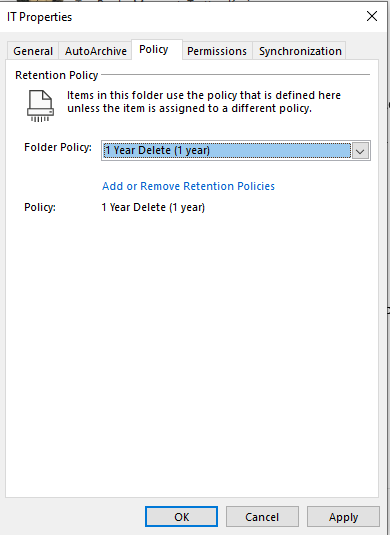
To assign retention policy to folders, right click on any Outlook folder and select "Properties".
Next, click "Policy" tab.
Then select the retention Folder Policy. Please note that all e-mails within the folder will be permanantly deleted once it reaches the policy deadline.
Don't forget to click "Apply".
See image below: