
Office 365 Encryption gives the user the ability to share confidential and personal information by encrypting email messages and preventing others from forwarding, printing, or sharing externally without permission. This is useful when you do not trust the recipient’s email provider to be secure.
There are two ways to encrypt your e-mail messages from Outlook.
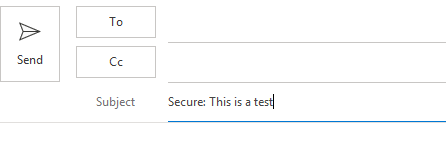
Option 1. Type the word "Secure:" or "Encrypt:" in the e-mail subject line. Be sure to include the colon(:) after the word. Enter the recipient(s), type your message, and click Send. Your're done! Your message is now secure. Any replies from the recipient(s) will keep the message secure.
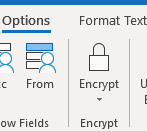
Option 2. Using Outlook desktop, open a new e-mail message, under Option, click Encrypt. Next choose which type of Encryption you prefer: Encrypt-Only; Do Not Forward; Confidential; or Highly Confidential. (See images below).
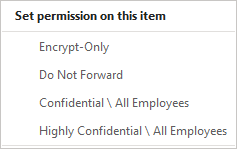
Encrypt-Only: Messages can be read directly in Outlook on the web, in Outlook for iOS and Android, and now Outlook for PC versions 2019 and Office 365. Recipients with other email accounts (Gmail, Yahoo) will be prompted to obtain a one-time passcode and read the message in a browser window.
Do Not Forward: All features from "Encrypt-Only" and the recipient is unable to forward or print message.
Confidential \ All Employees: All features from "Encrypt-Only" and "Do Not Forward" and content cannot be shared with external users.
Highly Confidential \ All Employees: All features from "Encrypt-Only" and "Do Not Forward" and "Confidential\All Employees and recipient is unable to reply.
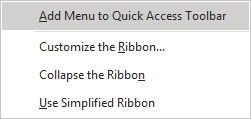
*If you right click on Encrypt, you can add this feature to your Quick Access Toolbar.
How do I send an encrypted email message from Outlook online?
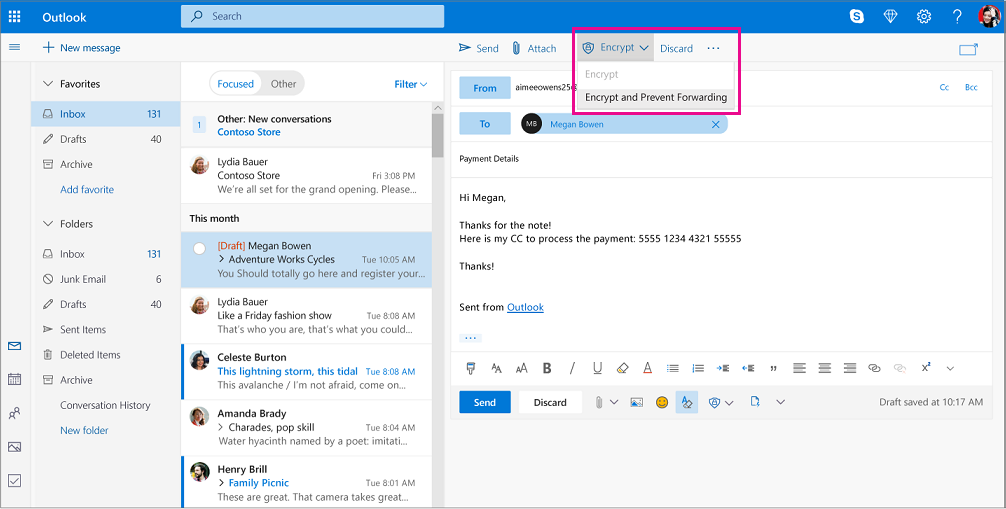
To send an encrypt message using Outlook online, click New Message and the toolbar option Encrypt. See image below.
How does the recipient read an encrypted email message if using Outlook.com or Office 365?
If you’re using Outlook.com or Office 365 and are using the Outlook.com website, the Outlook mobile app, or the Mail app in Windows 10, you can read and reply to encrypted messages the same way you do with unencrypted messages.
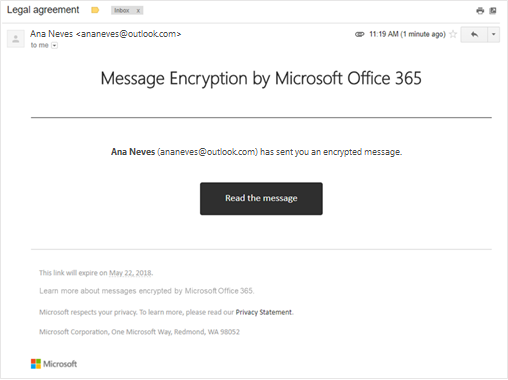
If you're using Outlook for Windows, Outlook for Mac, or a third-party email app, you’ll receive an email message with instructions for how to read the encrypted message. You can gain access using your Microsoft account or your Office 365 account.
How does the recipient read an encrypted email message? (I'm not using Outlook.com or Office 365)
You'll receive an email message with instructions for how to read the encrypted message. If the encrypted message was sent to a Google or Yahoo Mail account, you can authenticate using your Google or Yahoo account or by using a temporary passcode. If the message was sent to a different account (Comcast or AOL, for example) you can use a temporary passcode. The temporary passcode will be sent to you in email.
Are attachments also encrypted?
Not all attachments are encrypted. For example, PDF attachments are encrypted. For a complete list of which file types are encrypted, see here.
For attachments that are encrypted, recipients who access the encrypted email via the Office Message Encryption portal can view attachments in the browser.
Attachments behave differently after they’re downloaded depending on the encryption option used:
If you choose the Encrypt option, recipients with Outlook.com and Office 365 accounts can download attachments without encryption from Outlook.com, the Outlook mobile app, or the Mail app in Windows 10. Other email accounts using a different email client can use a temporary passcode to download the attachments from the Office 365 Message Encryption portal.
If you choose the Encrypt and Prevent Forwarding option, there are two possibilities:
Microsoft Office attachments such as Word, Excel or PowerPoint files remain encrypted even after they’re downloaded. This means that if the recipient downloads the attachment and sends it to someone else, the person they forwarded it to won’t be able to open the attachment because they don’t have permission to open it.
Note that if the recipient of the file is using an Outlook.com account, they can open encrypted Office attachments on the Office apps for Windows. If the recipient of the file is using an Office 365 account, they can open the file in Office apps across platforms
All other attachments, such as PDF files or image files, can be downloaded without encryption.
Currently, Outlook.com uses opportunistic Transport Layer Security (TLS) to encrypt the connection with a recipient’s email provider. However, with TLS, the message might not stay encrypted after the message reaches the recipient’s email provider. In other words, TLS encrypts the connection, not the message.
Additionally, TLS encryption didn’t provide the ability to preventing forwarding.
Messages encrypted with Office 365 stay encrypted and remain inside the Office 365 service. This helps secure your email when it’s received.