
Permanently Delete Confidential Email in Outlook
To permanently delete a message (without having the message go to the Deleted Items folder at all) in Outlook:
- Hold down the Shift key while pressing Del.
- You can also hold Shift while clicking the Delete button on the main Outlook Mail Window's Home ribbon or any open message's Message ribbon.
- Click Yes under This message will be permanently deleted.
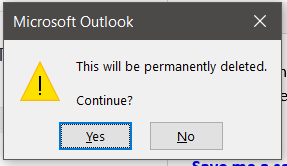
(The same works with entire folders, too.)
Empty the "Deleted Items" Folder in Outlook
To permanently delete all emails you have previously trashed in Outlook:
- With the right mouse button, click on the Deleted Items folder for the account or PST file you want to empty.
- Select Empty Folder from the menu that has appeared.
- Click Yes under Everything in the "Deleted Items" folder will be permanently deleted. Continue?. (This is with permanent deletion confirmation enabled; see below for turning this dialog off—permanently.)
As an alternative, you can also:
- Open the Deleted Items folder in Outlook.
- Go to the Folder ribbon.
- Click Empty Folder in the Clean Up section.
Have Outlook Empty the "Deleted Items" Folder Automatically
You can also set up Outlook to automatically and permanently delete emails in the Deleted Items folder (or folders) when you close Outlook.
To have Outlook delete all items from the Deleted Items folder when you exit it:
- Click File in Outlook.
- Select Options on the sheet that appears.
- Go to the Advanced category.
- Make sure Empty Deleted Items folder when exiting Outlook is checked under Outlook start and exit.
- Click OK.