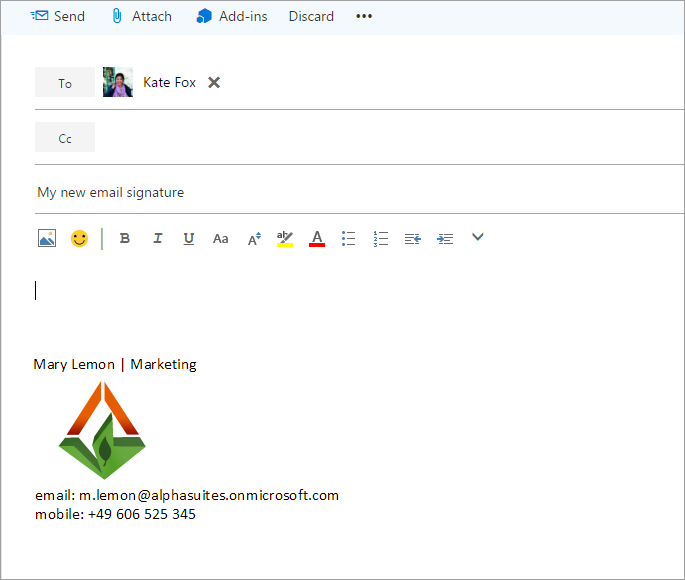
Set up an email signature in Outlook Online
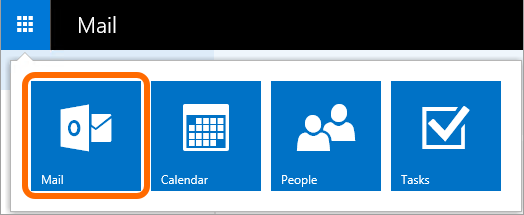
Log into your Office 365 account and go to the Mail app.
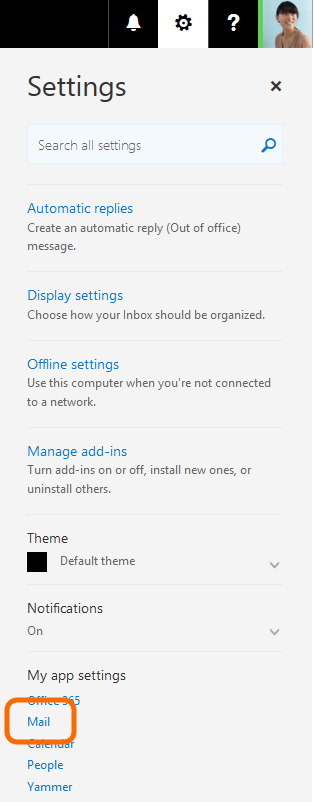
Then, go to the settings (it’s a gear icon at the top right-corner of the screen) and click Mail
On the left pane, under the Mail section, then Layout, select Email signature.
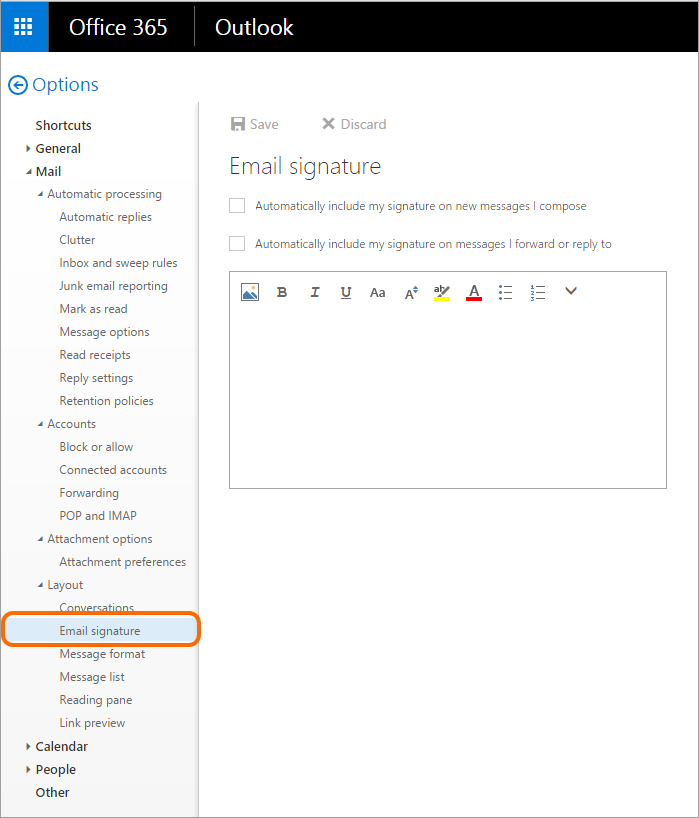
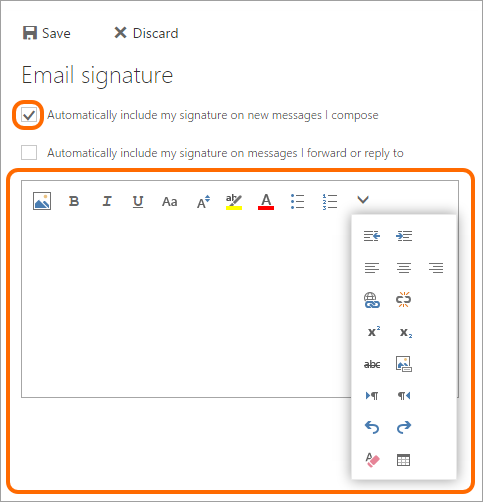
Copy signature from your Outlook Desktop and paste in text box shown below. Be sure to click Automatically include my signature on new messages I Compose.
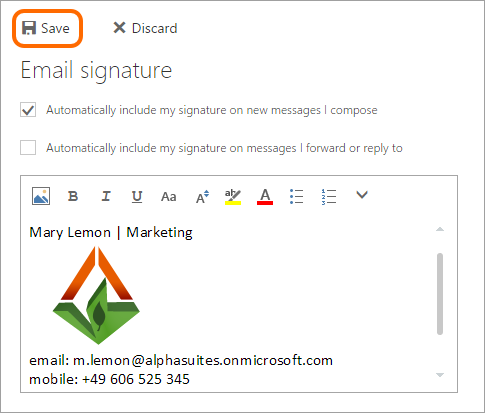
Once your signature has been added, hit the Save button so that all changes take effect.
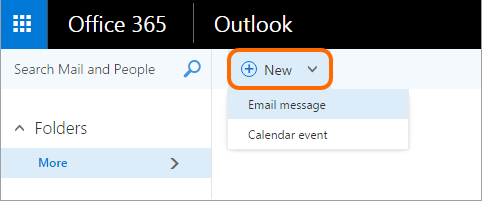
Confirm results by opening a new mail message.
Done.