
We recommend using the Outlook app (which can be found on the app store and google play store) on all mobile devices for the best experience. To use the built in Mail app on your Apple of Android device, see instructions below.
For Android Users
1. Go to settings. (We recommend being on Wifi).
2. Select Cloud and Accounts, and then Accounts.
3. Click on Microsoft Exchange ActiveSync. Click on old account. Click three dots in top right and select remove account (or remove in the top right corner).
4. Scroll to bottom of the Accounts window and select “Add Account”.
5. Select Microsoft Exchange ActiveSync.
6. Type in your email address and password.
7. Go with defaults, but if it prompts for more info:
a. Server: Outlook.office365.com
b. Domain: (Leave Blank or retype your e-mail)
c. Username: Enter E-mail - e.g. firstinitialslastname@meridian.org
d. Password: Email Password
8. Select next and then save. Your mail will begin to download.
For iPhone Users
1. Go to settings. (We recommend being on Wifi).
2. Select Passwords and Accounts.
3. Select Add Account.
5. Select Microsoft Exchange.
6. Type in your email address, press Next.
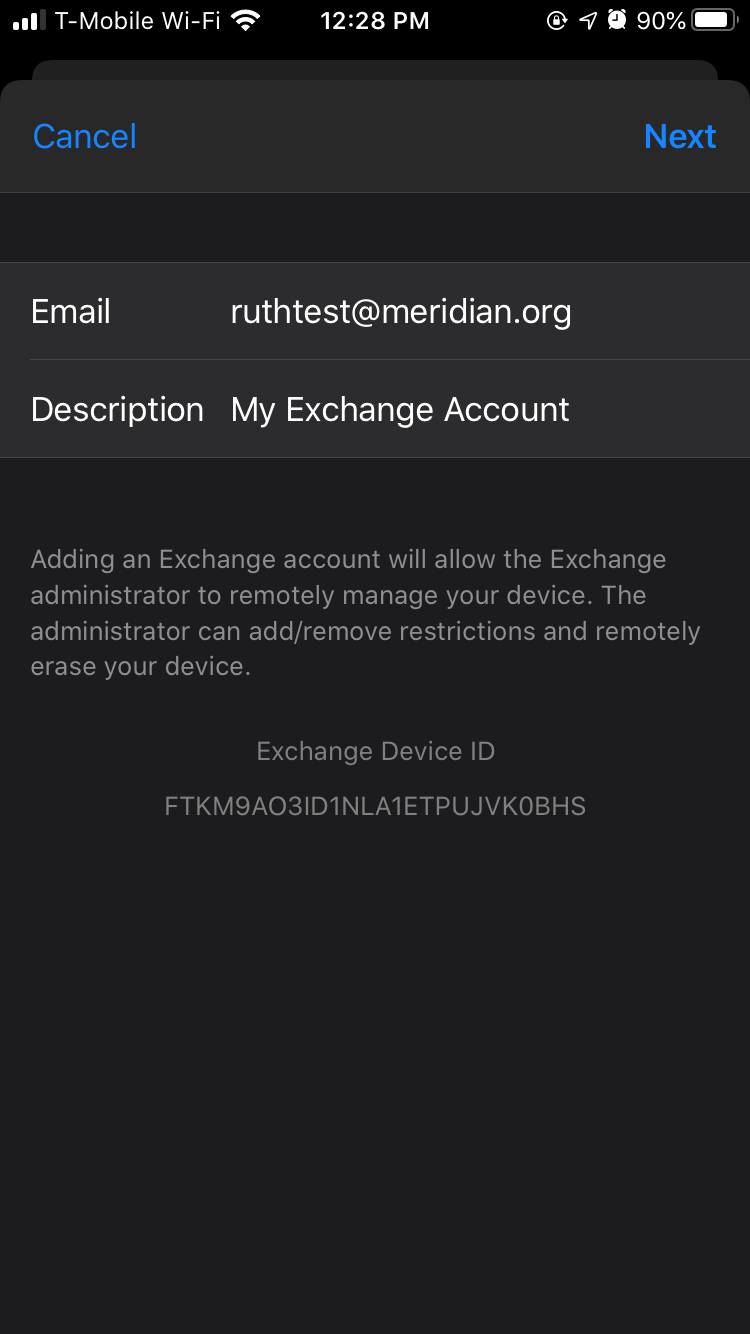
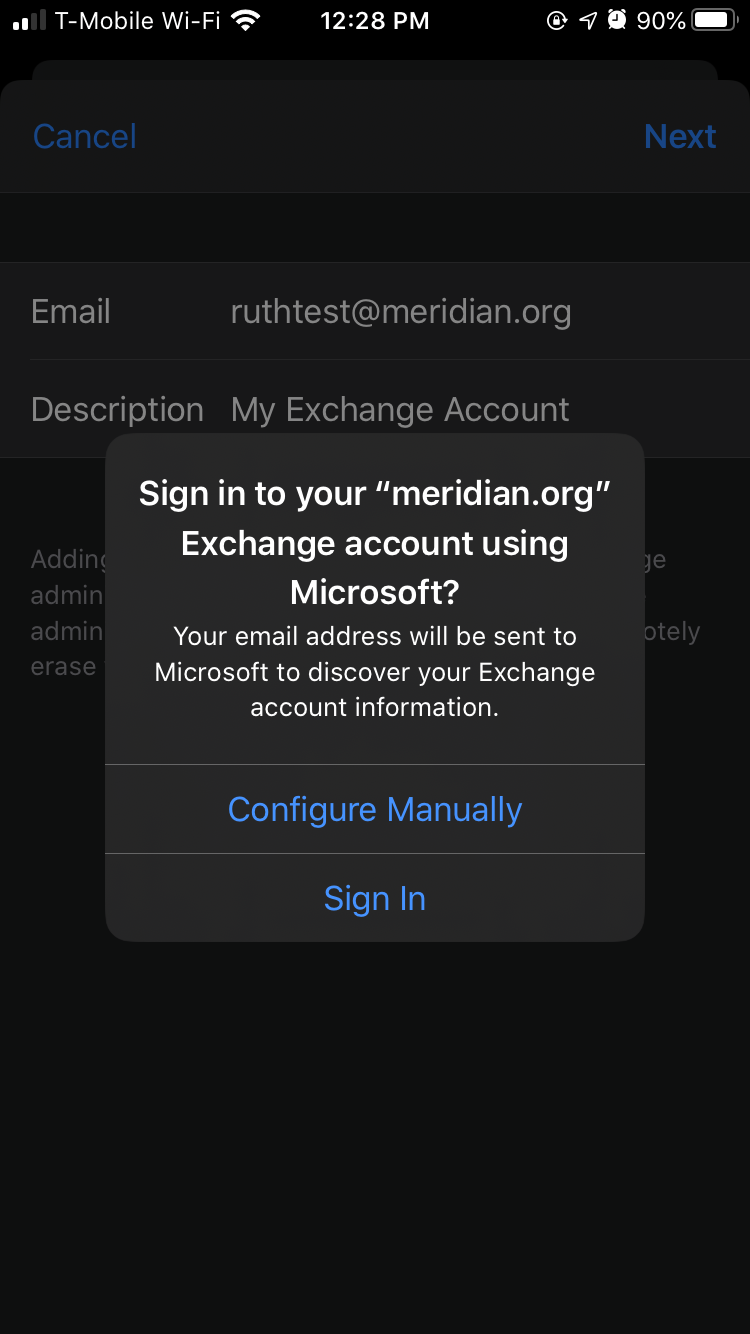
7. On the message prompt, click "Sign In"
7. On the Prime Meridian Sign in page, enter your password and press Sign In.
8. Approve the Sign-in request through your preferred MFA method.
9. Click "Save". The account should be added to your Mail App!