
As part of Meridian's cybersecurity polices, all staff that uses their personal device (BYOD) to access work related emails are required to install both the Intune Company Portal app and managed Outlook app.
Please use instructions below to install both phone apps. If you have any questions, issues or concerns, please contact IT (helpdesk@meridian.org).
Android Users
- Go to Google Play store
- Search “Intune Company Portal” app and follow prompts to install.
- The Intune Company App should look like the icon image shown below. You will need to provide your Microsoft password and MFA via Authenticator app to complete installation.

3. Once app is installed, open and click menu option in top left corner, then select “Get Apps”.
4. From there, select the “Microsoft Outlook” app and follow prompts to install.
5. You’re done!
- There are other apps in the Intune Company Portal, but none are required for installation, only for convenience.
- Also, please note for Android users, once you install the Outlook managed app on your phone, you will still have access to your current unmanaged Outlook. There's no harm in keeping both Outlooks for now, however, you should remove the current unmanaged Outlook app by the deadline.
- To see video instructions, click HERE.
iPhone Users
- Go to Apple Store.
- Search “Intune Company Portal” app and follow prompts to install.
- The Intune Company Portal app should look like the icon image shown below. You will need to provide your Microsoft password and MFA via Authenticator app to complete installation.

3. Once app is installed,
- Review privacy policy, download and install management profile.
- Confirm device settings
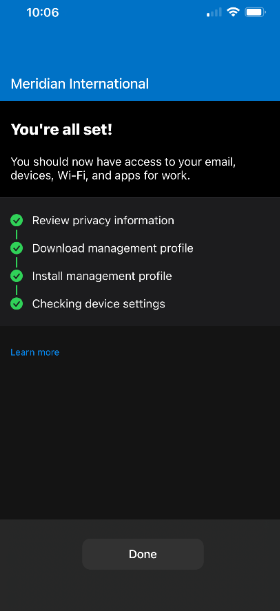
5. You’re done!
- There will be no visible changes to your Outlook, but your Outlook will be more secure with Intune Company Portal app.
- There are other apps in the Intune Company Portal, but none are required for installation, only for convenience.
- To see video instructions, click HERE.