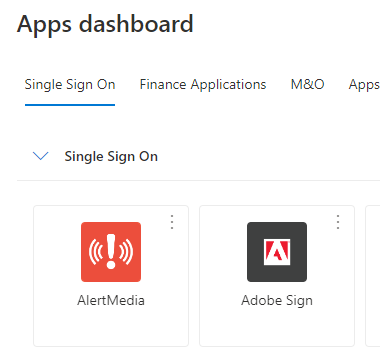
To change your AlertMedia contact preference, first log into your account by going to MyApps site. Under SSO, click AlertMedia icon to get direct access.
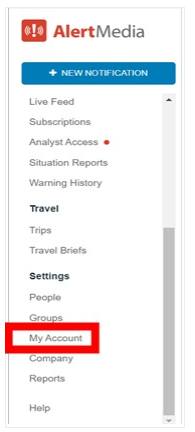
Navigate to the “My Account” tab at the bottom-left side of the dashboard.
Select “Settings” to view your profile.
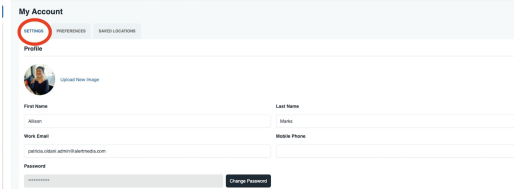
View and update the information associated with your profile. Make sure to click Save in the lower right-hand corner to ensure all your changes are saved. Note some fields may be locked, this is a setting updated by your company admin.

Select the “Preferences” tab to choose the channels you prefer to receive messages on. Make sure to hit “Save” if any changes are made. Please note your company admin has the ability to override these communications preferences in some scenarios.
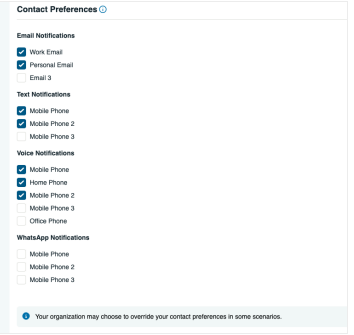
Done!
If you want to update your preferences through the AlertMedia mobile app, do the following:
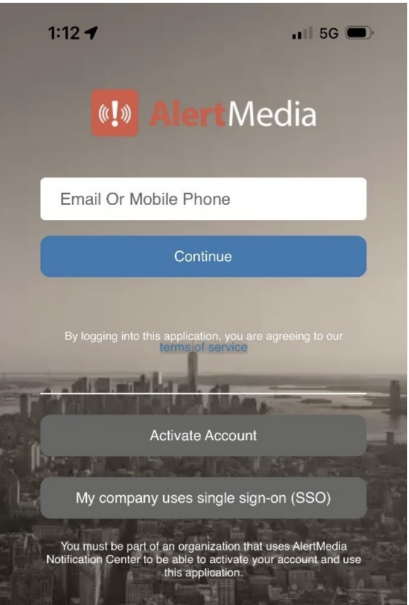
Sign into your mobile app using "My company users single sign-on (SSO)". Then follow prompt using your Microsoft password and MFA.
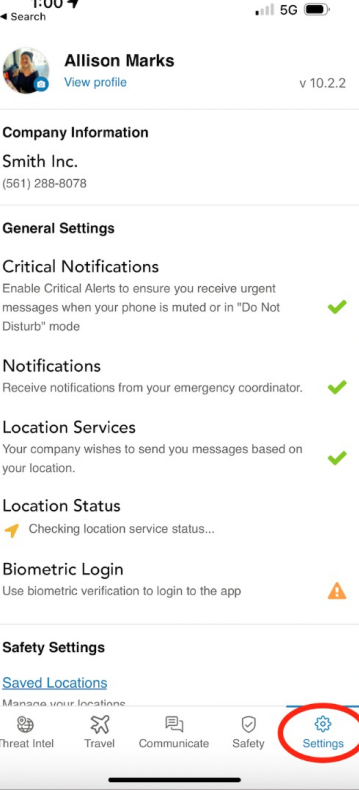
Navigate to the “Settings” tab.
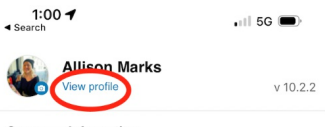
Select “View Profile” below your name.
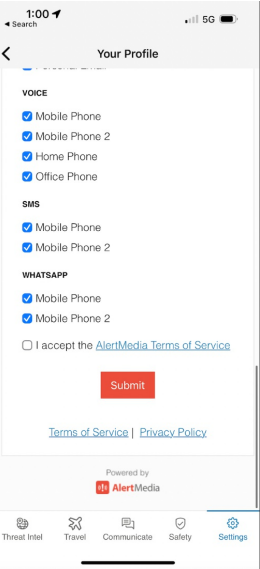
View and update the information associated with your profile. Make sure any changes are saved. Note some fields may be locked and cannot be manually updated, this is a setting regulated by your company admin.
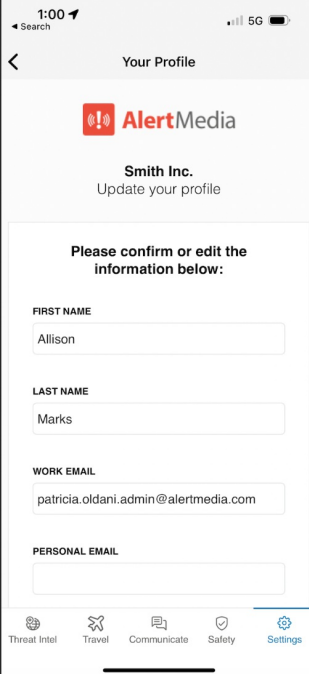
View Communication Preferences at the bottom of your profile. Select the channels you prefer to receive messages on. Make sure to accept the AlertMedia Terms of Service and hit submit if any changes are made. Please note your company admin has the ability to override these communications preferences in some scenarios.