
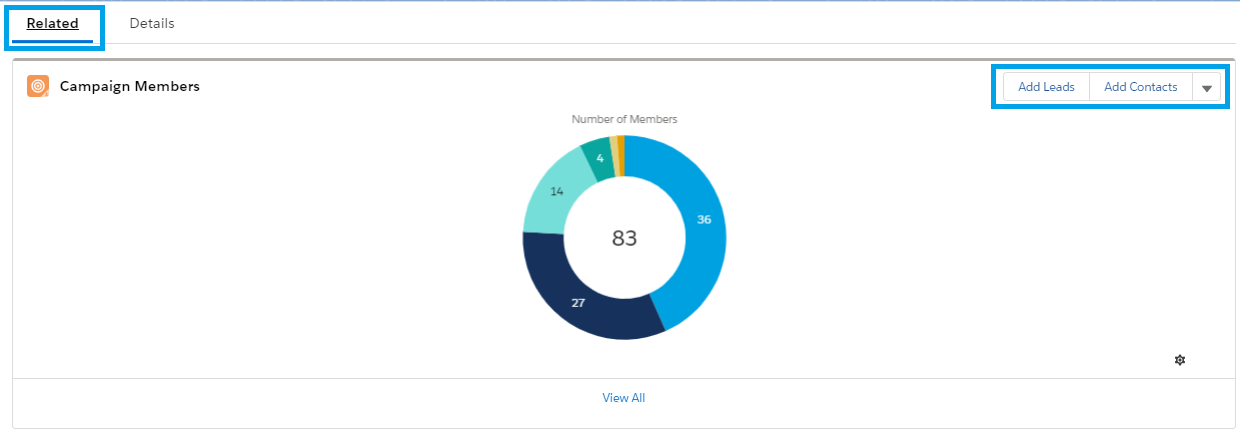
On the Campaign Related page, click "Add Contacts" on the Campaign Members section. You can do this from the summary page as shown above, or the details page (found if you clicked "View All" at the bottom).
On the page to add Contacts to a Campaign, search for the Contact you would like to add. If the person you are looking to add does not currently exist as a Contact within Salesforce, you can add them at this time by clicking "New Contact" which will take you to the same page as if you were adding a New Contact from the Contact object. Once you finish adding the Contact, you will add them the same as an existing Contact.
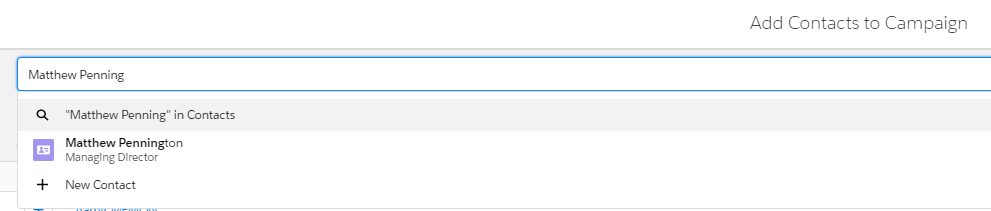
You can add multiple Contacts at the same time. Simply search for each Contact and click to add them. Once you have your final list of people you want to add, you will be brought to the below page, where you will confirm the information and then click "Submit."
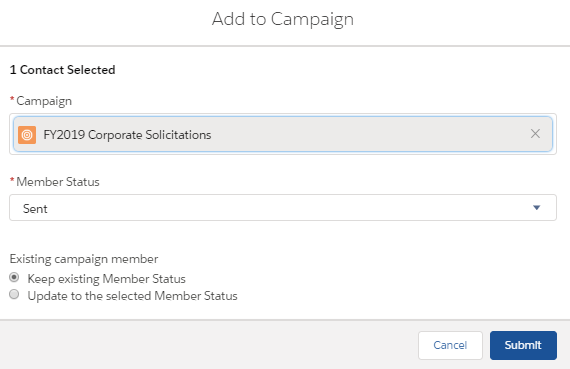
Your Contacts will then be added as Campaign Members directly to the Campaign.
Adding Contacts to a Campaign through Reporting
You can also add Campaign Members through Reporting. Using a report that returns Contacts, filter for those Contacts you want to add to the Campaign.
Note that you can only add Campaign Members from Reports if the report returns less than 50,000 records.
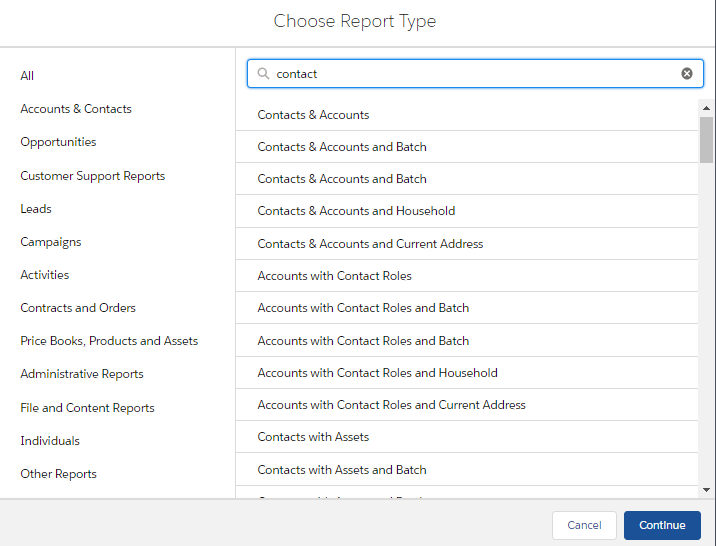
The above is the report options filtered for those with "Contact" in the Report Type.
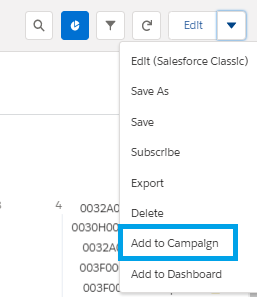
On the upper right-hand side, click the down arrow and click "Add to Campaign."
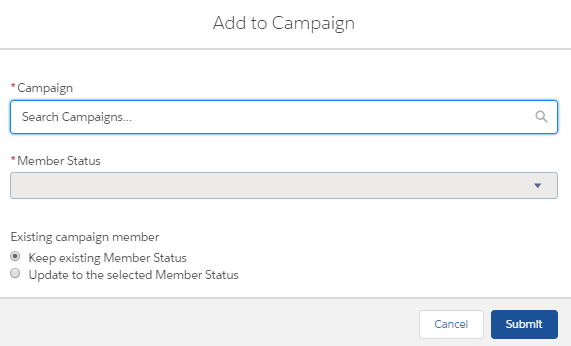
Search for the Campaign, update the Member Status, and click "Submit."
All values from the Report should now be seen in the stated Campaign.
Notes on Adding Members via Reporting:
- To add members to campaigns from custom reports, the report’s primary object must be a lead, contact, or person account.
- To add members to campaigns from reports in Lightning Experience, the custom report type must include the Full Name field.
- If you interrupt the add campaign members process, some members can still be added to the campaign. That’s because members are added in batches.
- If you edit a record during the adding process, it isn’t added to the campaign.
- You can add active leads to campaigns—not converted leads. If converted leads appear on your report, don’t worry, only the active leads are added to the campaign.
- The Add to Campaign button appears only in saved reports. The button doesn’t appear when you edit or preview a report.