
Sometimes we need to add a lot of information into Salesforce at one time, and it would be more efficient to have someone upload that data in one batch, rather then employ someone to manually add it.
Uploading Large Numbers of Records
If you are looking to upload large numbers of any type of records, please speak to the System Administrator about what to do. Below is guidance on prepping your data for upload into Salesforce. Attached to this page is an Excel spreadsheet for you to use as a template for your upload.
Prepping Data for Upload into Salesforce
Only certain individuals have the authorization to upload information into Salesforce. Please connect with your System Administrator to see who you should connect with in regard to uploading a large amount of information into the system.
Dividing Information by Object
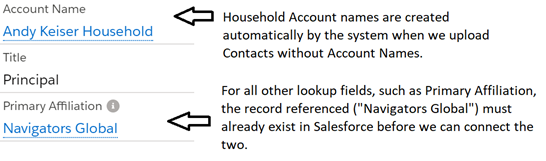
When we upload information, we must go object by object – this means that we must upload any new Accounts first, then Contacts, then Campaigns/Projects, etc. When we connect one object to another (say, adding a Primary Affiliation Account to a Contact record, or adding a Contact as a Campaign Member) both objects must already exist in Salesforce. This may mean we do multiple stages of uploading new objects and then matching against existing ones in an update.
When you are creating a spreadsheet to send for upload, please make sure you break out the information that needs to be uploaded by Object - I will upload all Accounts at once, then all Contacts, then all Project Contact/Project Visitor/Campaign/Opportunity information. This is because we are going to reference information from the Account in the Contact upload, and the Contact in the Project Contact/Project Visitor/Campaign/Campaign Member uploads. If they original information isn't there, we can't reference it!
Include Everything
Any new information for an object must be included in the tabs below - any time you reference an Account record in a Contact upload, we need to make sure that Account already exists and so should be included in the "Accounts" tab (for example if you want to add a Primary Affiliation for a Contact, make sure that Account already exists in Salesforce or add it to the "Accounts" tab for upload).
What Fields Should I Include?
You can pick and choose which fields you want to add/update for which record in an upload – so if you have a lot of information for some Accounts but not others, just leave those cells blank when you don’t have that information.
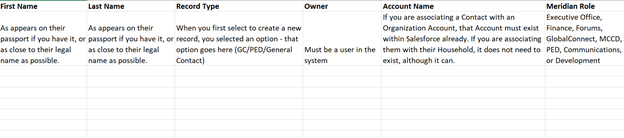
The fields included in the connected spreadsheet are the bare minimum required fields we need for upload. They are broken out by Object in the same way I would like you to break out your details for upload. You should add any fields from those Objects (Accounts, Contacts, Campaigns, Projects, etc.) into the spreadsheet in the tabs provided. I tried to leave guidance for each field when appropriate.
Always check to see if a record already exists in Salesforce. If it does, please make a note of that in your spreadsheet as I will need to update those records rather than create new a new record.
Field Names
Please label any new column headings exactly as they appear in Salesforce so it is easier for me to match or confirm the field you want that column to be matched with. For example, please don't just put "Country" - put "Citizenship Country".
Picklists
If you are adding details to a picklist field or a field with any value set that you are selecting from, make sure that what you have entered into the cells in your spreadsheet matches the values available in Salesforce. For example, Myanmar is not a value in Salesforce for "Citizenship Country" under the Contact record, but Burma is. If you put Myanmar into your upload for that field, the system will reject the entire upload and we'll have to redo it.
Checkboxes
Any field that appears as a check box should be filled as 1s if you want it checked and 0s or blanks if you do not.
Addresses
All addresses need to be in multiple fields: Street Address, City, State, Zip Code, Country (if outside of the U.S.)
If you only have one address, for Accounts please label it as the Billing Address and Contacts as the Mailing Address.
All addresses should follow the below guidance:
- Spell out all street details (Street, Boulevard, Avenue, etc.)
- Spell out Apartment
- PO Box should not have periods between P.O.
- Only include the country if it is outside the United States
1234 Spring Street NW, Apartment 325
Washington, DC 20009
Contact Information
There are multiple phone and email fields for Contacts. Please label the field you are uploading (Work, Home, Mobile, etc.) and select the type of email or phone number you want to use as the main email/phone in the “Preferred Email” or “Preferred Phone” field, as below:

All emails should be in the form of one email per field – do not say janesmith@gmail.com OR janesmith@yahoo.com – pick one and then place the other in another field (such as Alternate Email).
All phone numbers should be in the format of xxx-xxx-xxxx. There are separate fields for Country Code and Extension should you need to utilize them.
Dates
All dates should be the traditional American format – MM/DD/YYYY.
Updating Existing Records
To update existing records in Salesforce, follow the same process as above but with the following note -
For records that already exist in Salesforce that you want to update, if you have the 15-18 digit unique Salesforce ID for those records it will ease the updating process! The ID can be downloaded into reports or found in the URL of that record’s page, as highlighted below:

If you do not have the Salesforce ID for records you are trying to update, please provide as much identifying information as possible.
Making Errors
If you send me a spreadsheet with a lot of errors, I will shoot it back to you with guidance on how to improve it for upload. If you send me a spreadsheet with minimal issues, I will likely fix them and re-upload, but send you details on what I needed to fix so you are aware going forward. It is normal to have several rounds of back-and-forth before the upload is complete.
Depending on the size of your upload, it can take anywhere from an hour to a couple days or even weeks to get it completely right. Please let me know in advance if you have a timeline you need to meet.