Dashboards are a good way to visualize your data in charts. They are based off Reports.
A dashboard is a visual display of key metrics and trends for records in our Salesforce org. Within each dashboard are dashboard components, or individual charts. Each dashboard component must have an associated source report. As each dashboard component will have one associated report, you will likely have multiple reports forming each full Dashboard.
Dashboards are built with source reports, filters, and components.
- Source reports are reports that provide data for components. Each component has one source report. Different components can have different source reports. The fields available for dashboard filters are the fields available in the objects that source reports are based on. Create source reports in the Report Builder.
- Filters let dashboard readers scope the data they see in the dashboard to a particular view.
- Components are the visual “blocks” of a dashboard. Each component is either a chart, gauge, metric, or table.
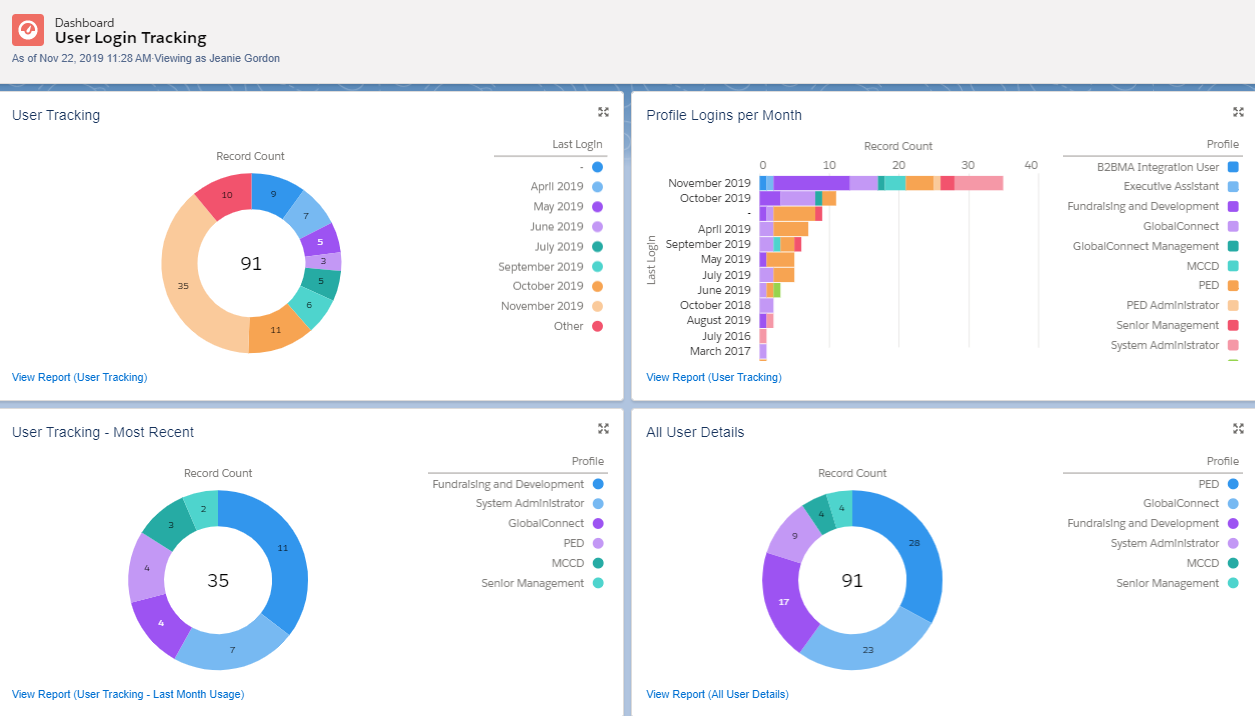
Below is an example of a Dashboard with four Components, taken from three different Source Reports. You can see the Source Report on the bottom left of the component, under "View Report [Report Name]". You can click into the report to see that individually if you prefer.
Types of Components
Below are the examples of the different types of Dashboard components you can create:
        | Use a chart when you want to show data graphically. You can choose from a variety of chart types. |
 | Use a gauge when you have a single value that you want to show within a range of custom values |
 | Use a metric when you have one key value to display. |
  | Use a table to show a set of report data in column form. |
Viewing and Subscribing to Dashboards
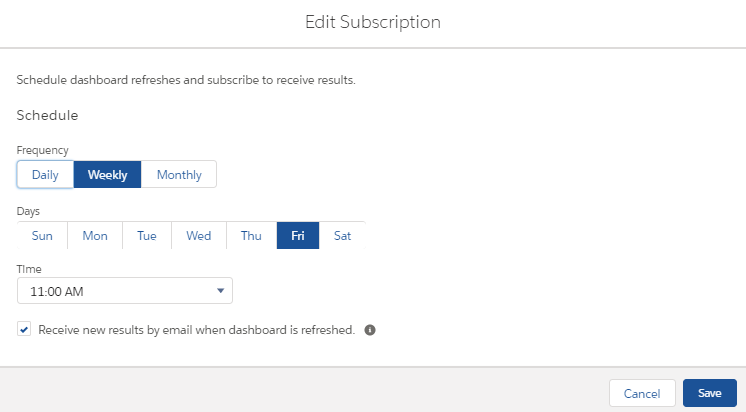
When you view a Dashboard you always need to click "Refresh" on the upper right hand side. You can also subscribe to different Dashboards you need to view a Dashboards with regularity. The below screenshot demonstrates how to subscribe to Dashboards.