
What is a List View?
You can access a list view in Salesforce if you want to see an editable and flexible list of records relating to just one Salesforce object – i.e., a list of Contacts, a list of Projects, or a list of Opportunities. You can filter the view and add and remove columns so you see only the data you want within one object; you can pull certain details for Contacts, but you cannot filter your Contacts by something on an Account record – you can only filter it by something on the Contact record.
Why Are They Useful?
You can save List Views to show what information you want on a given object, and you can use in-line editing to change field values from the list. If you need to update multiple records with the same value, you can do that straight from the list view without needing to go into each individual record and edit it, thus saving you time.
New List View
Go into the object you want to view – Contacts, Accounts, Campaigns, Projects, etc.
Note – this List Views does not work with Campaign Members at this time.
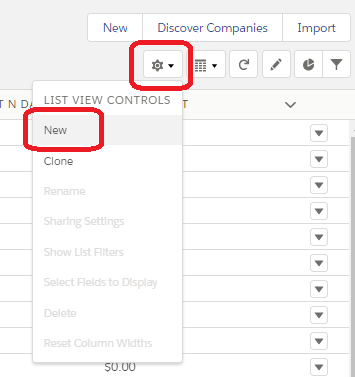
Click the gear icon, then click “New” under List View Controls.
 à
à 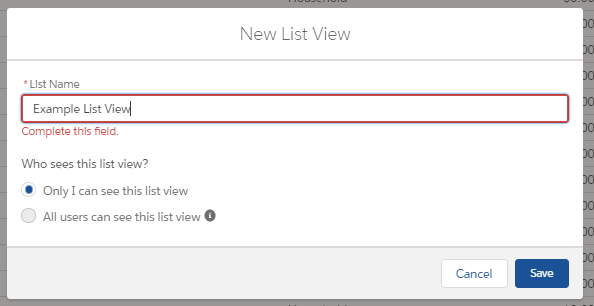
Enter a name for your List View and select whether you want to share it or if only you want to have access to the view.
 Filtering List Views
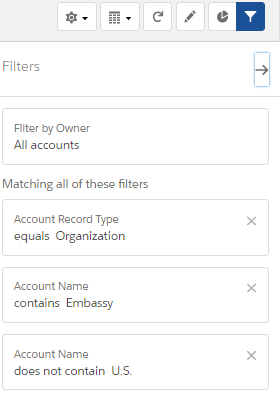
You can filter your List View to show what you want under the funnel icon. You will have to hit “Save” before you will see your changes confirmed. Any filter you add will act as “and” logic – in the example to the left, it would be filtered by “Owner: All Accounts AND Account Record Type equals Organization AND Account Name contains Embassy AND Account Name does not contain U.S.” This would filter down so you are only seeing embassies of other countries, not American embassies.
You can implement Filter Logic (“All Accounts OR Account Name contains Embassy”) but you lose the ability to conduct in-line editing (see below) when you do that. It’s a quirk of Salesforce that you can’t have Filter Logic and in-line editing.
 Altering Columns in List Views
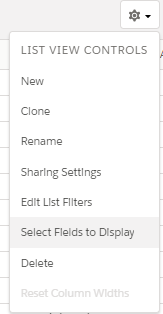
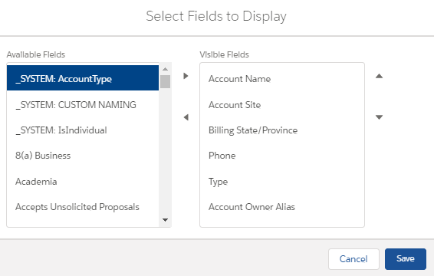 You may want to change which columns you see in your List View. You do this by going to the gear icon on the upper right-hand corner and selecting “Select Fields to Display.”
You would add and remove fields as you choose by using the left and right buttons. Left is all the fields available to you to select, and right are those already selected. You can only have 15 different fields in a List View.
In Line Editing
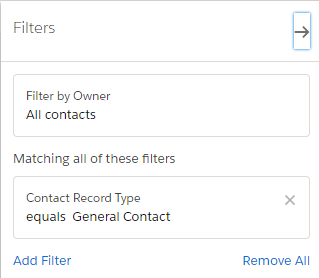 To in-line edit you must have the List View filtered by one Record Type. This is a quirk of Salesforce since different Record Types have different Picklist values available. You do this in your filtering of List Views. Once you have in-line editing enabled (you can tell because there will be a check box next to the name of the records), you can select any number of records to edit at once. The edits must be the same across the board (for example, making all Embassies the Type: Embassy), but it’s very useful if you have several edits that need to be made at once, or if you have a few minor edits that you don’t want to have to open the Contact page for.
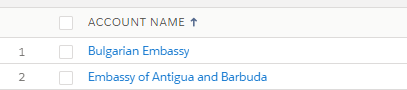
Once you make your edits, you must be sure to click “Save” at the bottom of the page, or your edits will not save.
Relevant Trailhead Training: Create and Customize List Views