
Reports are useful for…
- Cross-object reporting: E.g. “I need to see a list of all donations [Opportunities] and donor info [Contacts]”, or “I need to see a list of projects [Projects] and visitor info [Contacts].”
- Visualizations – you can’t make charts with list views but you can with reports, and you can build Dashboards off of reports.
- Counting larger numbers – list views paginate (you have to scroll down to get all detail) rather than giving you the full picture all at once
- Doing grouping or math – list views just show a tabular Excel-like format whereas reports can make headers, groups, and sum up values automatically.
Ideally you will not need to create many reports from scratch, but instead can use existing reports. The key to using reports effectively is knowing what objects you want to pull from.
Useful Report Types:
The most useful report type for you may not be the most useful for someone else, or even for something you need to use next week. With that caveat in mind, here are some of our most used report types (listed alphabetically, not by frequency used):
- Accounts with Affiliations and Contact
- Campaigns with Campaign Members
- Campaigns with Contacts
- Campaigns with Contacts and Household Accounts
- Campaigns with Opportunities and Primary Fund
- Contacts and Accounts
- Contacts with Campaign History
- Contacts with Relationships and Related Contact
- Opportunities, Campaigns, Contacts, Households
- Opportunities and Primary Fund
- Opportunities with Payments
- Projects
- Project with Project Contacts and Resources
- Projects with Project Contacts and Resources
Using Existing Reports
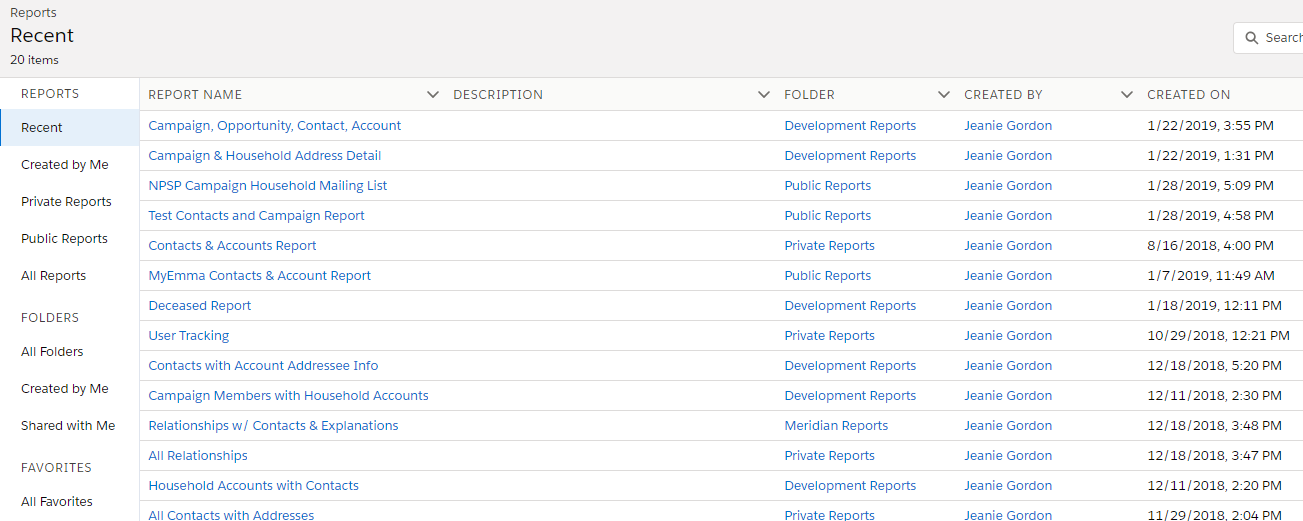
Under the “Reports” tab you will see a list of available reports, and a list of folders which have additional reports in them (note that your view will look different from this depending on what reports you have previously looked into). If you know a report that has what you need in it, you just open it and go to work!
To edit an existing report, click into the report and click “Edit” on the upper right-hand side. Once you are in the editing view, you can alter the filters and the columns and groupings in the report. You can filter and add columns based on the objects that are available in the report. A snapshot below shows what this could look like:
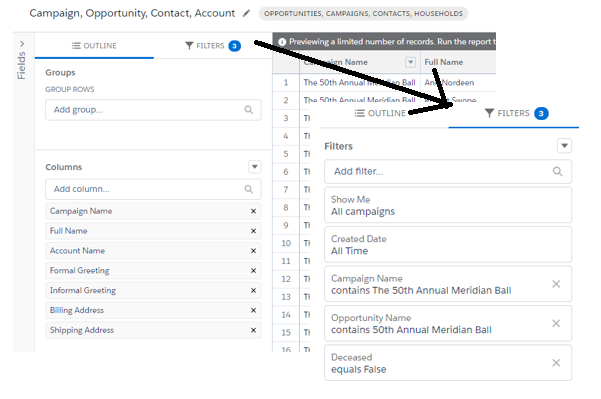
Any filters are automatically put into “AND” logic, so the above example would read: “All Campaigns AND Created Date: All Time AND Campaign Name contains The 50th Annual Meridian Ball AND Opportunity Name contains 50th Annual Meridian Ball AND Deceased equals False.” If you want to have “OR” logic, simply click the downward arrow under the filters pane and select “Add Filter Logic”.
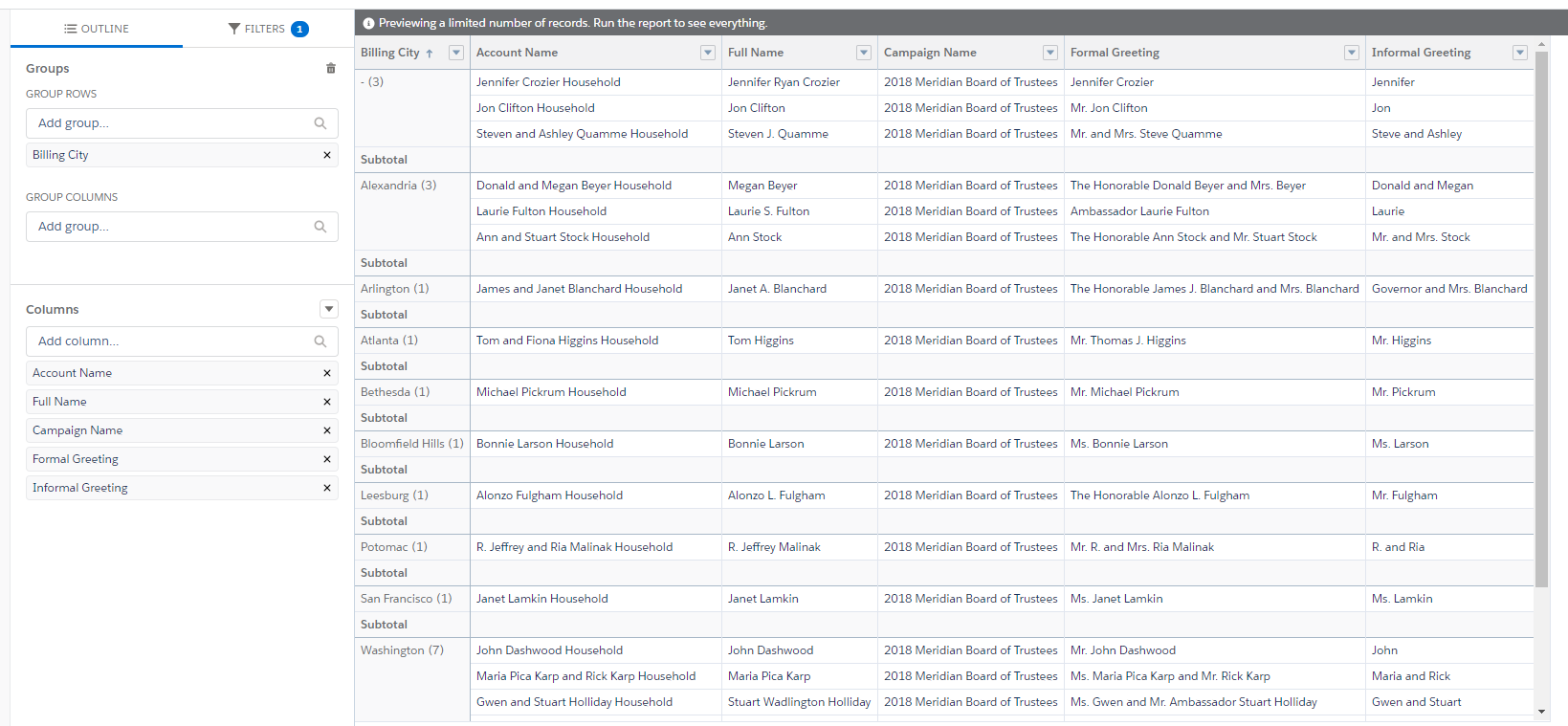
You can also group by various fields, which is useful if you need to know total numbers of something. Simply type the field you want to group by under “Groups” on the Outline tab. The below example shows us where our 2018 Board of Trustees had their Billing City as an example.
If you want to edit a report but don’t want to keep the changes, simply click “Run”. Running a report without clicking “Save” will show you the updated information, but won’t save. When you leave the report and come back, it will look like it did before you edited it. If you want to edit a report and save the changes, but keep the old report as it was (especially useful if you are running a report for your own purposes but want to keep a public report public), click the down arrow next to “Save” and click “Save As.” When you “Save As” you have the opportunity to put your report in a folder – to make it accessible to others in your designation or keep it private – just click “Select Folder”. If you don’t select a folder, it will become your private report that no one else will have access to.
Creating a New Report
To create a new report, click “New Report” in the upper right side of the Reports main page. You will then see a long list of different report types. You can scroll through or you can search for an object that you want to include in the report. The report names should be clear as to the objects that are included in them.
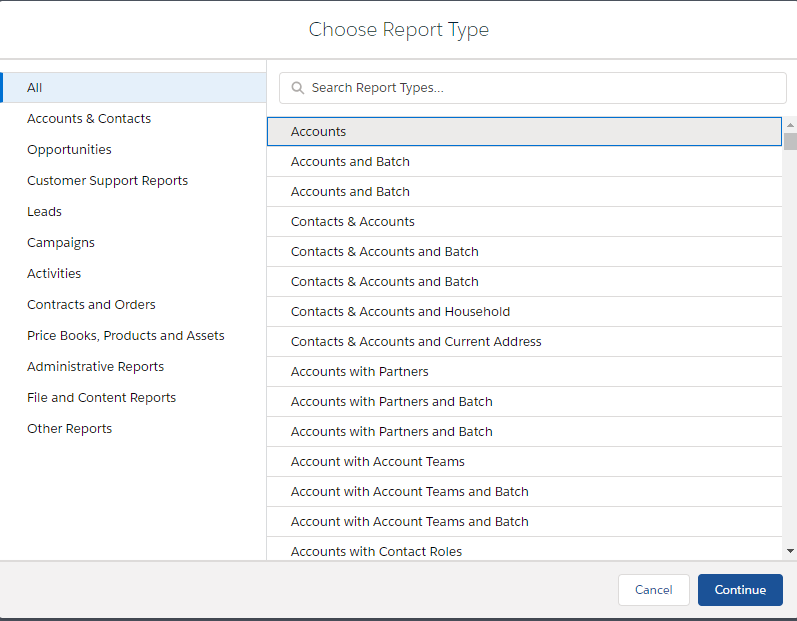
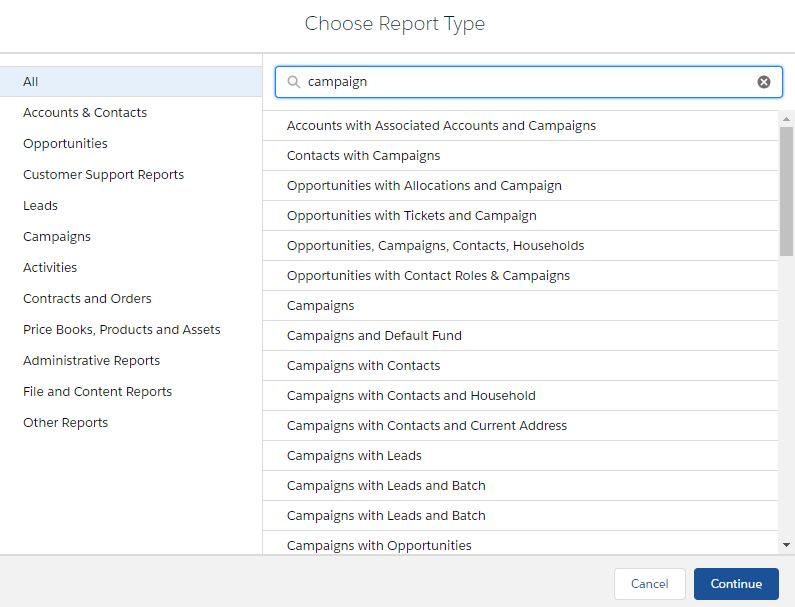
Once you select a report type, you will follow the same steps you did as if you were editing an existing report. All reports automatically default to your information in a given time period. You can edited those filters to show whatever you would like. Remember to save your report at the end or it will disappear!
It could take some time to get a grasp on what reports you want to edit or what report types you want to use most often – don’t worry about it! There are a lot of options and sometimes it takes some playing around and learning. List views and reports are both really useful once you get the hang of them.
Relevant Trailhead Training: Explore Reports and Dashboards; Reports & Dashboards for Lightning Experience