
If you believe you should be able to add or edit information in Salesforce and you cannot, please let your System Administrator know.
Entering New Accounts and Contacts into Salesforce
When you receive a new Account or Contact to enter in to Salesforce, first check and confirm that that person or organization does not already exist. This may include searching a couple of different ways. For example, the system will not recognize PwC as Pricewaterhouse Coopers, LLC, even though they are the same company. Similarly, if you are entering a university, such as The University of Texas at Austin, Salesforce may not recognize that entry and University Texas, Austin, University of Texas-Austin, and University of Texas at Austin as the same. Please search carefully (in this case I would just search for University of Texas, which would show you all those results).
We do have matching rules in place for when you add information into Salesforce. They should alert you if you try to create a new Account or Contact that is the same as an existing record. If the system alerts you that you are creating a record the same as an existing one, please do not continue to create that record. Instead go to the currently existing one and update any information as necessary. If you are alerted that you are creating a duplicate but, after checking, you confirm that your Contact or Account is a completely new record/individual, you can ignore the alert and continue to make the new record.
What Information Should I Include About a New Account?
- Account Name (Use the formal of the name as best you can and avoid acronyms if they are not the actual name)
- If a company is also known by its acronyms, please include that in brackets after the title "PricewaterhouseCoopers [PwC]"
- USG agencies and offices are in the format "U.S. Department of State [DoS]"
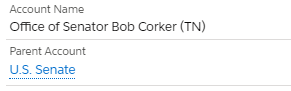
- Parent Account – if a company is a branch or the child of another Account, make sure you enter the Parent Account in this field. For example, the Office of Senator Bob Corker is nested under the Account U.S. Senate. Note the Parent Account must already exist in Salesforce before you can connect them.
- Phone Number (main number for the organization)
- Billing Address (as complete as possible, any address should go under this unless otherwise indicated)
- Active (check box)
- If you have any main Contact that you work with, include them under Primary Contact
- Note that that Contact will have to exist before you can do this. It’s a bit of a chicken/egg situation.
- For Household Accounts: Addressee Details (See below)
What Information Should I Include About a New Contact?
- Contact Name
- Meridian Role (which section of Meridian does this contact associate with? You can select more than one)
- Email – enter either a Personal, Work, Alternate Email, and then select which is the “Preferred” email – this will make the Email field automatically populate
- Phone – enter either a Home, Mobile, or Work Phone and then select the “Preferred” Phone.
- Address – any address should be connected to the Mailing Address to start.
- Addressee Details – See below
Addressee Details – How to Enter in Naming Details
Accounts and Contacts both have opportunities for you to enter in details that will help send letters, emails, and other communications to your contacts.
Contacts
- Salutation: a greeting used to address an individual, including their title
- First Name: Given first name – not required for those who do not have legal first names.
- Middle Name
- Last Name: Required in Salesforce
- Suffix
- Preferred Name: The name the individual prefers to go by, or a nickname (Calvin Ripkin’s preferred name is Cal, Michael could be Mike, Jonathon could be John, etc.)
- Phonetic: How you should pronounce the individual’s name
- Honorific: a title that conveys a position or rank when addressing a person (Her/His Excellency, The Honorable, etc.)
- Formal Greeting: A greeting that would appear on an envelope – Mr. John Doe / The Honorable John Doe
- A combination of Honorific, First Name, Last Name
- Informal Greeting: A greeting that would appear on the letter – Mr. Doe / Ambassador Doe
- Honorific, or the combination of Mr./Ms./Miss/Mrs./Title Last name
Accounts
- Name: Full name of the Household or Organization
- Organization: Full, legal name of organization
- Household: First Name Last Name Household OR for couples and families, Jane and John Doe Household (wife or individual with the honorific goes first)
- Formal Greeting: The name that should appear on the envelope greeting – Mr. and Mrs. John Doe / The Honorable John Doe and Mrs. Doe
- Informal Greeting: The name that should appear on the letter – Mr. and Mrs. Doe / Ambassador and Mrs. Doe
- First Name(s): First names of those individuals within the Household – John and Jane
Identifying Duplicates After Creating New Account
When you create a new Contact or Account, the system will hopefully alert you if you are creating a duplicate, based on the above Matching Rules. However, sometimes the information you are entering is different enough from that in the system that it may not flag immediately. If you create a new entry in the system only to see it’s a duplicate, or if you locate duplicates at any time, please send Jeanie an email at jgordon@meridian.org.
To add a new record, click on the object you wish to add a record to (Account, Contact, etc.) and you should see a button to click that says “New”. Alternatively, you can click the drop down arrow that appears when you hover over the name of the object and you should be able to create a new one from there.

When you create a new record, you will see a requirement to select a record type. It should hopefully be clear which type you need to use by name or by description. Please connect with your supervisor or the System Administrator if you are unsure which record type to select.
When creating a new record, please check to make sure that record does not already exist in Salesforce.
Accounts:
At the minimum it is best practice to enter:
- Account Name (Required)
- All government entities will be entitled “U.S. Department of XXX”
- All sub-bureaus will need to be nestled in below their parent Account.
- Spell out all organizational names. Any acronyms should be placed in [brackets] at the end (U.S. Department of State [DOS])
- All government entities will be entitled “U.S. Department of XXX”
- Organization Accounts:
- Parent Account (If part of a hierarchy)
- Website
- Address (information on formatting addresses is found below)
- Phone Number
- (XXX) XXX-XXXX for U.S. based. There are fields for Country Code included for those outside of the U.S.
- (XXX) XXX-XXXX for U.S. based. There are fields for Country Code included for those outside of the U.S.
- Household Accounts:
- Primary Contact
- Formal Greeting (Particularly for Development Contacts)
- This is the greeting that will go on an envelope for mailing – Mr. and Mrs. John Smith
- Informal Greeting (Particularly for Development Contacts)
- This is the greeting is the letter salutation – Mr. and Mrs. Smith
- First Name(s) (Particularly for Development Contacts)
- Phone Number
- Address
Contacts:
All Contacts must be associated with their Household Account as their primary connection. If you create a new Contact but do not enter a name in the “Account Name” field, Salesforce will automatically create a new Household Account record.
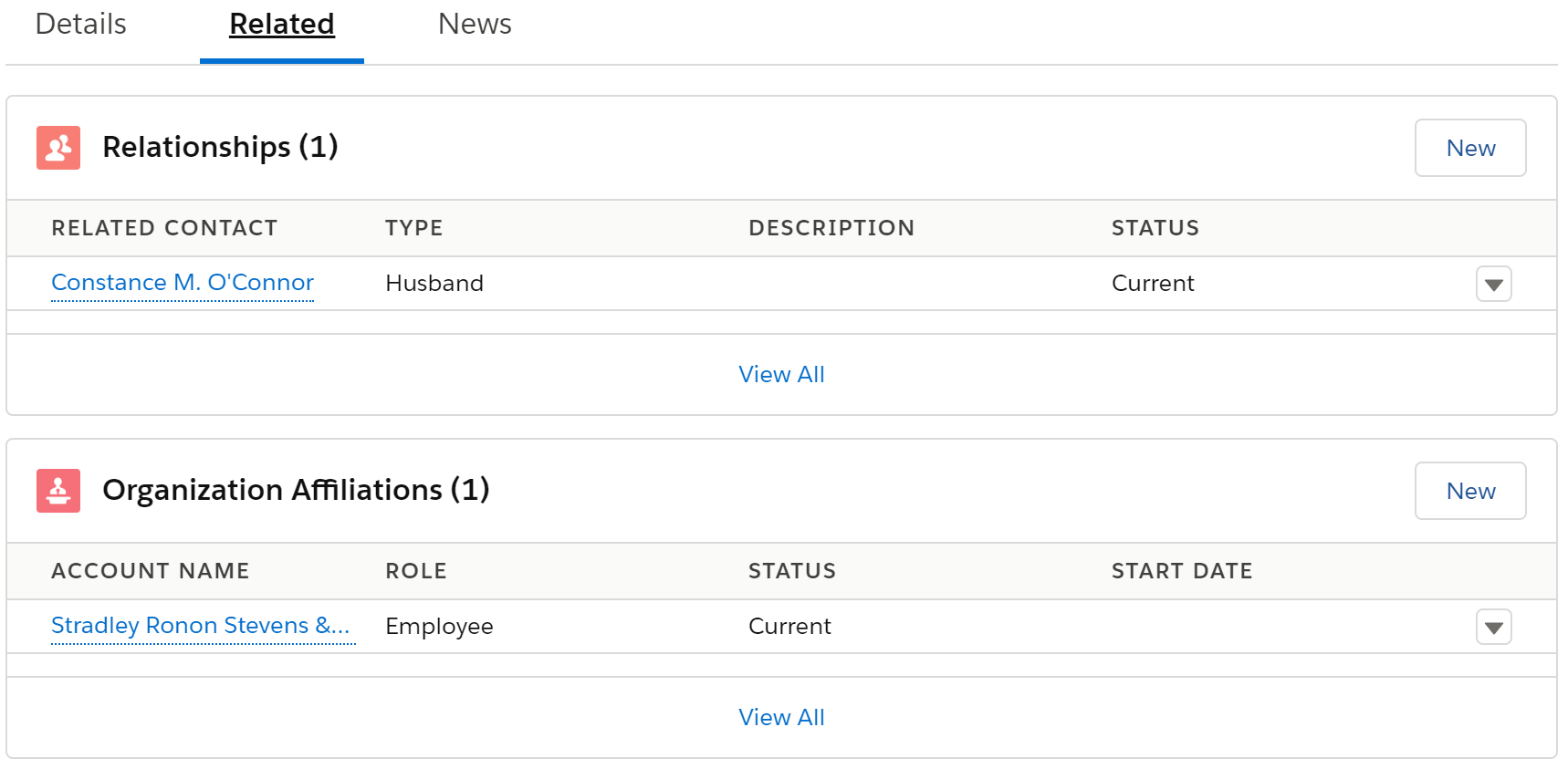
Primary Affiliation is where you can track where an individual works or the organization that they are most closely affiliated. If a person has more than one affiliation you want to track, please enter the main affiliation in Primary Affiliation, then enter any other affiliations under the Related tab (see below).
Relationships: you can connect a Contact with another through Relationships – found on the Related tab (see below).
For Contacts, please include:
- Last Name (Required)
- First Name
- Formal Greeting (Particularly for Development Contacts)
- Mr. John Smith or Mrs. Jane Smith
- Informal Greeting (Particularly for Development Contacts)
- Mr. Smith or Mrs. Smith
- Department Role (select that department you are creating the Contact for)
- We use this to track who is connected to which departments and manage who is reaching out to existing Contacts.
- Email (the System Administrator uses this to match and avoid creating duplicate Contacts when uploading new information)
- Phone Number
- Address
Address Formatting:
- Street: Spelled out with abbreviations on the end – Street, Court, Place, etc.
- Rte for Route on the front end (Rte 66)
- Apartment Numbers: Place on a second line, spell out Apartment
- PO Box: Standard format, no dots between “PO”
- City: Abbreviate as necessary or standard for that city (St. Paul)
- State: Abbreviations without periods
- Country: Do not enter anything if the address is within the U.S., only enter if the address is international
Example:
John Smith
1630 Meridian Place NW
Apartment 54
Washington, DC 20001
Phone Numbers:
- Area code in parenthesis, space between area code and start of number, dash between digits 3 and 4 - (XXX) XXX-XXXX
- There are fields for Country Code and Extension on the Contact and Account pages.