Tips on Searching in Salesforce
Print
Created by: Kevin D Trotter
Modified on: Tue, 14 Jan, 2020 at 11:50 AM
The Search toolbar allows you to lookup information in the database, across all Objects.
Note: Search should always be your first step before entering any information in Salesforce.
Enter your term in the search box, and then press search.

After typing your search term in the Search bar and pressing Search, you will see a large number of results are returned. Salesforce automatically searches the most common object record types: Accounts, Contacts, Campaigns, Projects, Opportunities, and Reports. Salesforce also searched the entire record for the text in question - which is why below you see the top Contacts are not named Smith - the word "Smith" appears somewhere in their Contact record beyond their name.
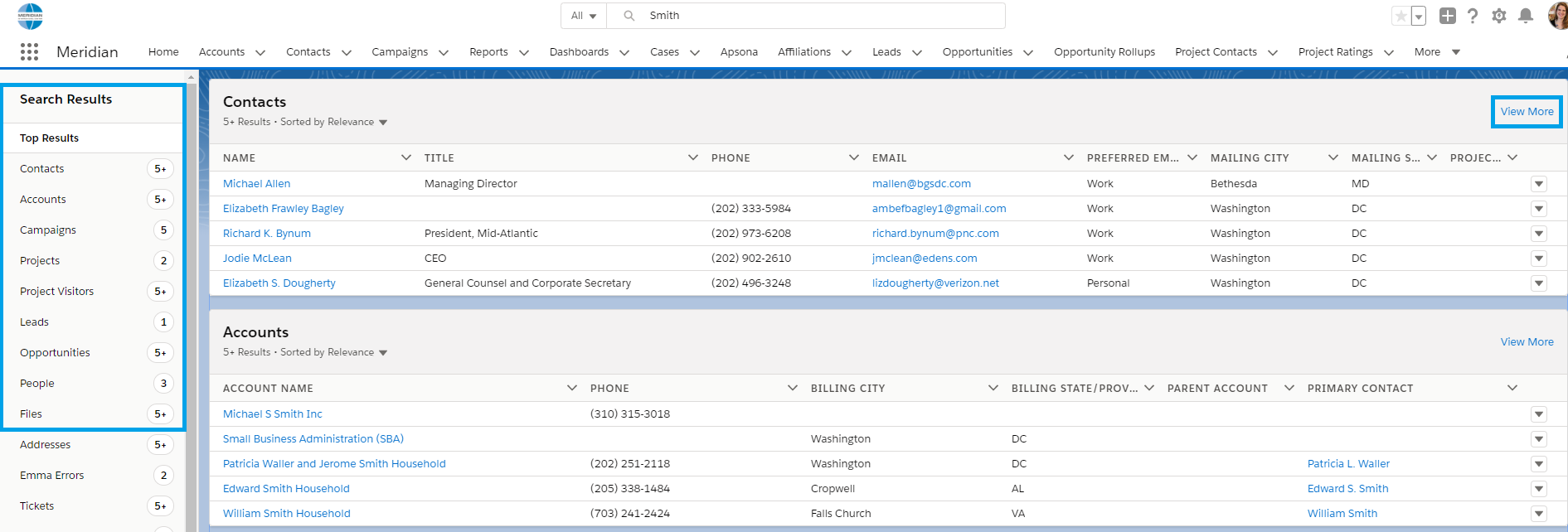
To view more records in a given Object, click "View More" at the top right of that Object's results. You can also narrow down the Object you are searching by by clicking on that Object on the left-hand side.
If the record you are searching for appears, select the record you wish to view by clicking on the record name.
Notes:
After a record is created or updated, it can take a few minutes for the new text to be indexed and become searchable.
Not all objects and fields are searchable.
The search engine only returns results you have permission to view. If you know a record is in Salesforce but it does not appear in the search, please contact your System Administrator.
Kevin is the author of this solution article.
Did you find it helpful?
Yes
No
Send feedback Sorry we couldn't be helpful. Help us improve this article with your feedback.
